Skins & capes
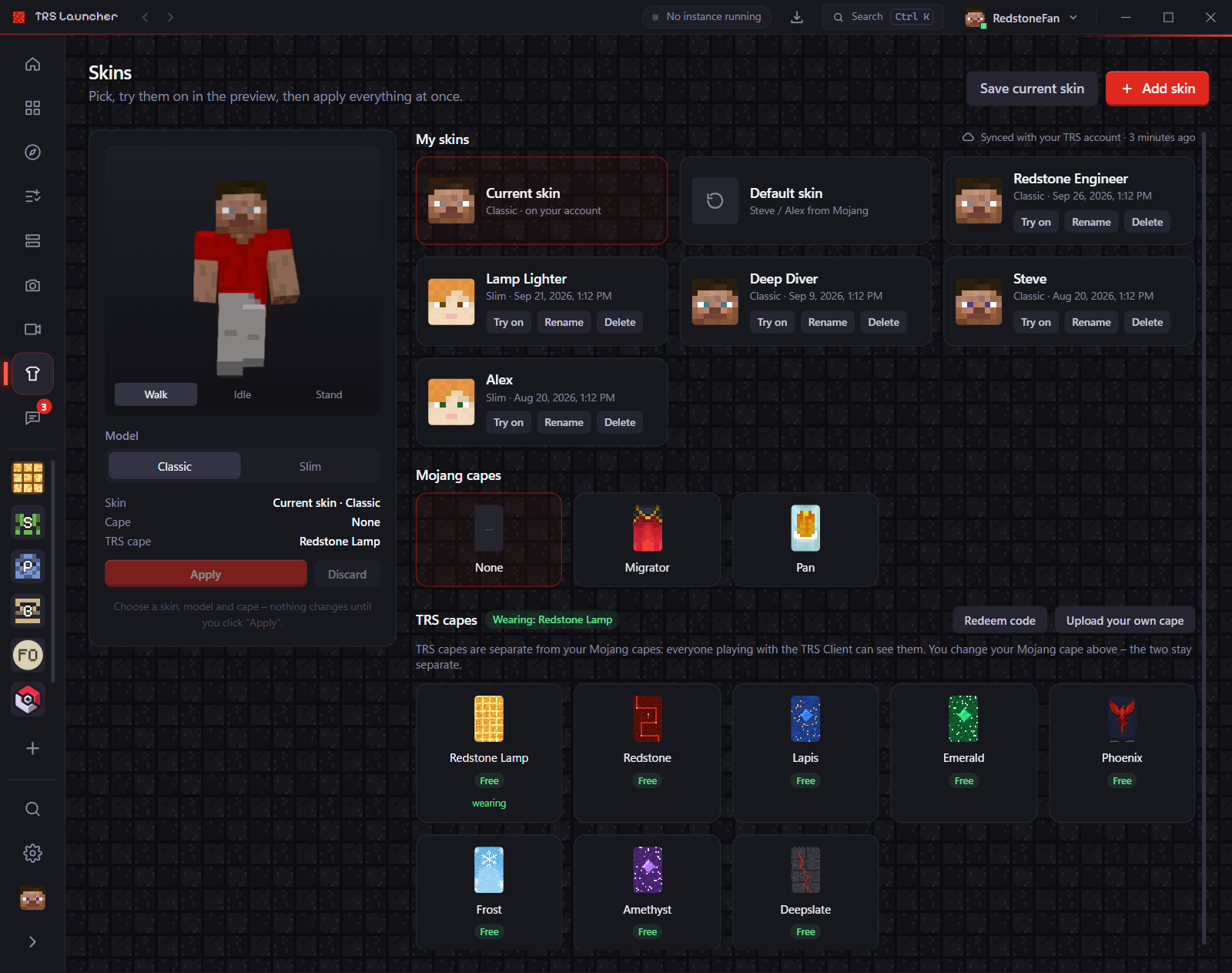
Skins in the sidebar is your wardrobe: collect skins, try them on in a 3D preview, pick your Mojang cape and wear TRS capes that everyone with the TRS Client can see.
Change your skin
Try it on
Click a skin under My skins to see it on the 3D figure. Drag to rotate, scroll to zoom, and switch between Walk, Idle and Stand.
Pick model and cape
Choose the Model – Classic (4-pixel arms, Steve) or Slim (3-pixel arms, Alex) – and one of your Mojang capes.
Apply
Nothing changes on your account until you click Apply. Discard throws your changes away.
The launcher sends the change to Mojang in the background. If Mojang slows down requests, it waits and applies the change by itself – you see a short note.
Add skins
Add skin opens a menu:
- Choose files – one or more PNG files (64×64, or 64×32 for old skins). You can also drag PNG files into the window.
- By link – a public https link to a PNG image.
- By player name – copies the skin a player is wearing right now.
- From other launchers – skins you saved in the official Minecraft Launcher, Prism Launcher, the Modrinth App or ATLauncher.
The launcher recognises slim arms by itself; for a single skin you can still change the name and model. Save current skin adds the skin your account is wearing to your collection. You can rename and delete skins in your collection at any time.
TRS capes
TRS capes are separate from your Mojang capes: everyone who plays with the TRS Client sees them (some are animated). They need the optional TRS services.
- Click a cape to try it on, then Put on – or Take off.
- Locked capes can be tried on anyway; some can be unlocked with a code, others come from achievements.
- Once you've unlocked a head cosmetic, it's listed below the capes and put on the same way.
Redeem a code
Click Redeem code in the TRS capes section and enter the code (20 characters, for example 7K3QF-M2XPA-9RTVB-C4HJN – case and hyphens don't matter). The unlocked cape or cosmetic appears in your collection right away.
Upload your own cape
Choose images
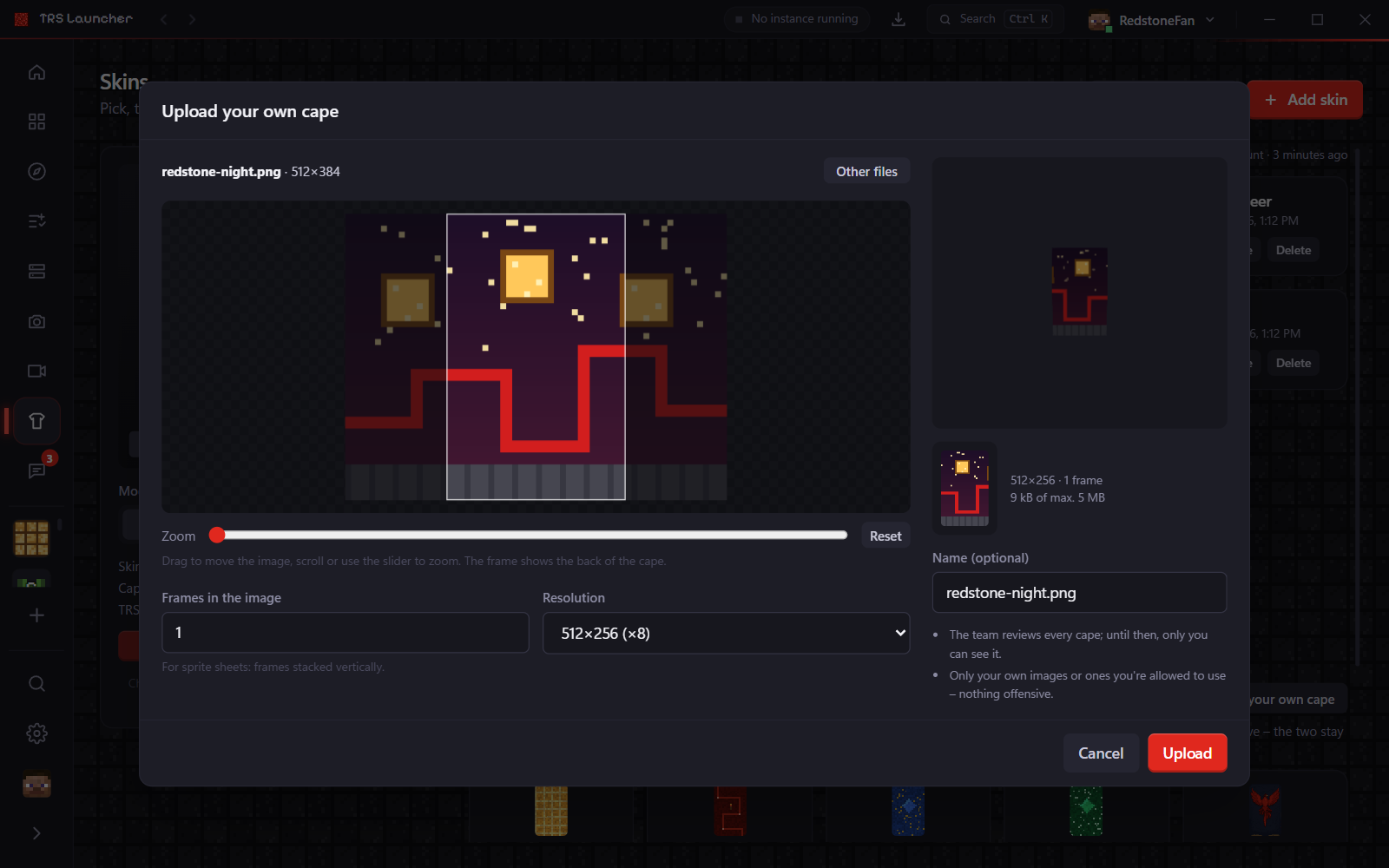
Upload your own cape → Choose files: any PNG, JPEG or WebP image, an animated GIF, several images as frames, a finished cape texture or sprite sheet, or a TRS Studio export.
Pick the part
Drag and zoom to choose the part that goes on the cape and watch it live on the player. For animations, choose the speed.
Upload
Up to 512×256 pixels per frame, up to 16 frames, at most 5 MB. Click Upload.
The team reviews every cape – until then only you can see it. Only upload your own images or ones you're allowed to use.
Share a cape with friends
Once your own cape is approved, Share with a friend offers it to a friend, who can accept or decline. Friends may pass it on to their friends – up to 20 players per cape. Shared shows who has it, and you can take it back at any time; everyone they passed it on to loses it too.
Emotes
Emotes and the emote wheel live in the TRS Client's wardrobe in the game. Rewards like the Party emote show up there automatically.
Achievements
Unlock achievements in TRS Launcher for playtime, launcher features and the community – earn points and rewards like capes and emotes.
Settings
All TRS Launcher settings – theme and language, Java and memory, launch hooks, storage, network, clips, notifications and privacy with TRS services.