Sign in
To play, you sign in with the Microsoft account you bought Minecraft: Java Edition with. You enter your password only on Microsoft's own page in your browser – the launcher never sees it.
Add an account
Open the accounts
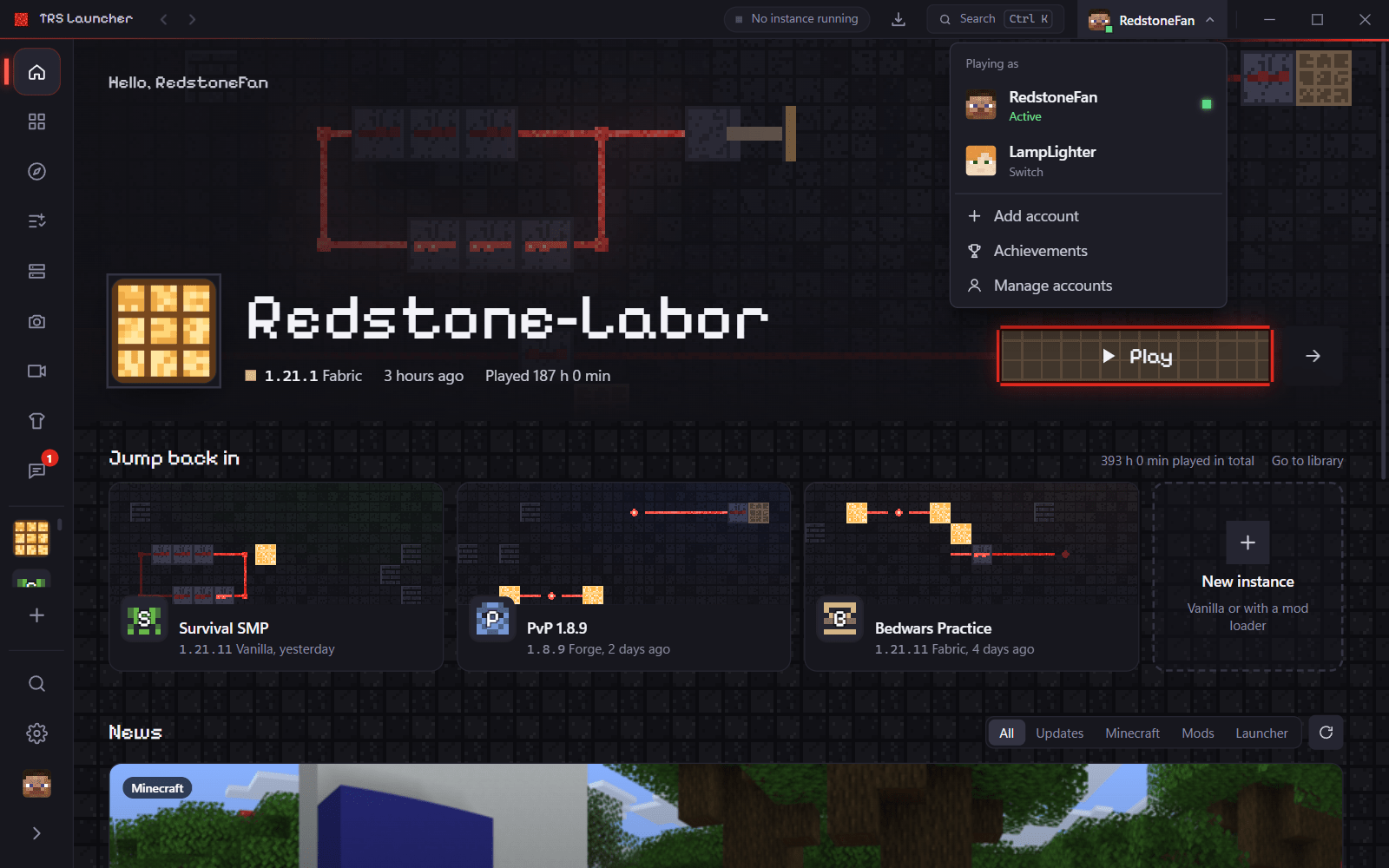
Click Sign in at the bottom of the left sidebar, or open the account menu at the top right of the title bar and choose Add account.
Sign in with Microsoft
Click Add account (or Sign in with Microsoft). Your browser opens Microsoft's sign-in page. Sign in there – the launcher continues by itself as soon as you're done.
Ready to play
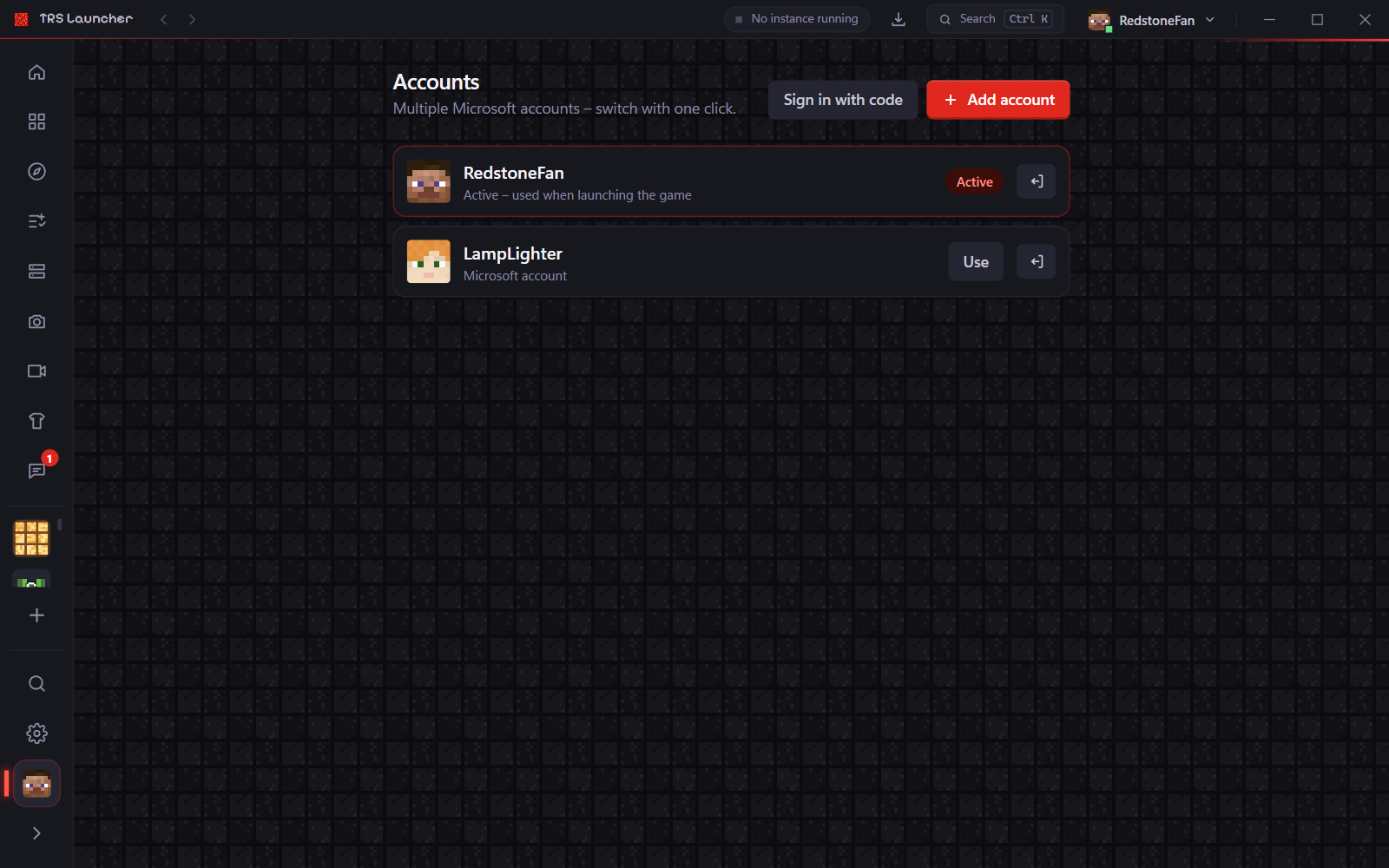
The account shows up in the list with its skin head. The active account is marked Active and is used when you launch the game.
Sign in with a code
If the browser sign-in doesn't work on your PC, click Sign in with code. The launcher shows a short code and opens Microsoft's page – enter the code there. Click the code to copy it.
Several accounts
You can add as many Microsoft accounts as you like.
- Switch: open the account menu at the top right of the title bar and click Switch next to another account. On the accounts page the same button is called Use.
- Manage: Manage accounts in the account menu opens the accounts page.
- Sign out: the sign-out button next to an account removes it from the launcher. Your instances and worlds stay.
Where your sign-in is stored
Sign-in tokens stay on your PC, encrypted: on Windows with Windows' own encryption for your user, on Linux with a key from your system keyring. They are never sent to the TRS server or anyone else. When a sign-in expires, the launcher renews it by itself.
Sign in on the TRS website
On trs-launcher.theredstonee.de you can sign in with your launcher instead of typing a password:
Choose "TRS Launcher" on the website
The launcher opens and shows a code, the website and the browser that asks.
Compare the code
Check that your browser shows exactly the same code. You can pick another of your accounts.
Confirm
Click Confirm – you are signed in on the website. Nothing is confirmed without your click.
On another PC, type the code from the website under Settings → Privacy → Sign in on the website (or search for it with Ctrl K). Signing in on the website uses the optional TRS services – see Settings.
Installation
Download and install TRS Launcher on Windows 10/11 or Linux (AppImage, .deb, .rpm, AUR). Free, no admin rights, Java is set up for you.
Your first instance
Create your first Minecraft instance in TRS Launcher – pick a version and mod loader, press Play and watch the launcher set up everything.