Modpacks
A modpack becomes its own instance with all its mods, settings and files. TRS Launcher installs packs from Modrinth and CurseForge, from a downloaded file or by code from a friend.
Install a modpack
Find the pack
Open Discover, choose Modpacks and search on Modrinth or CurseForge. The home page also has Discover modpacks.
Start the install
Click New instance on the result – or Install as instance on the project page.
Choose TRS Client or not
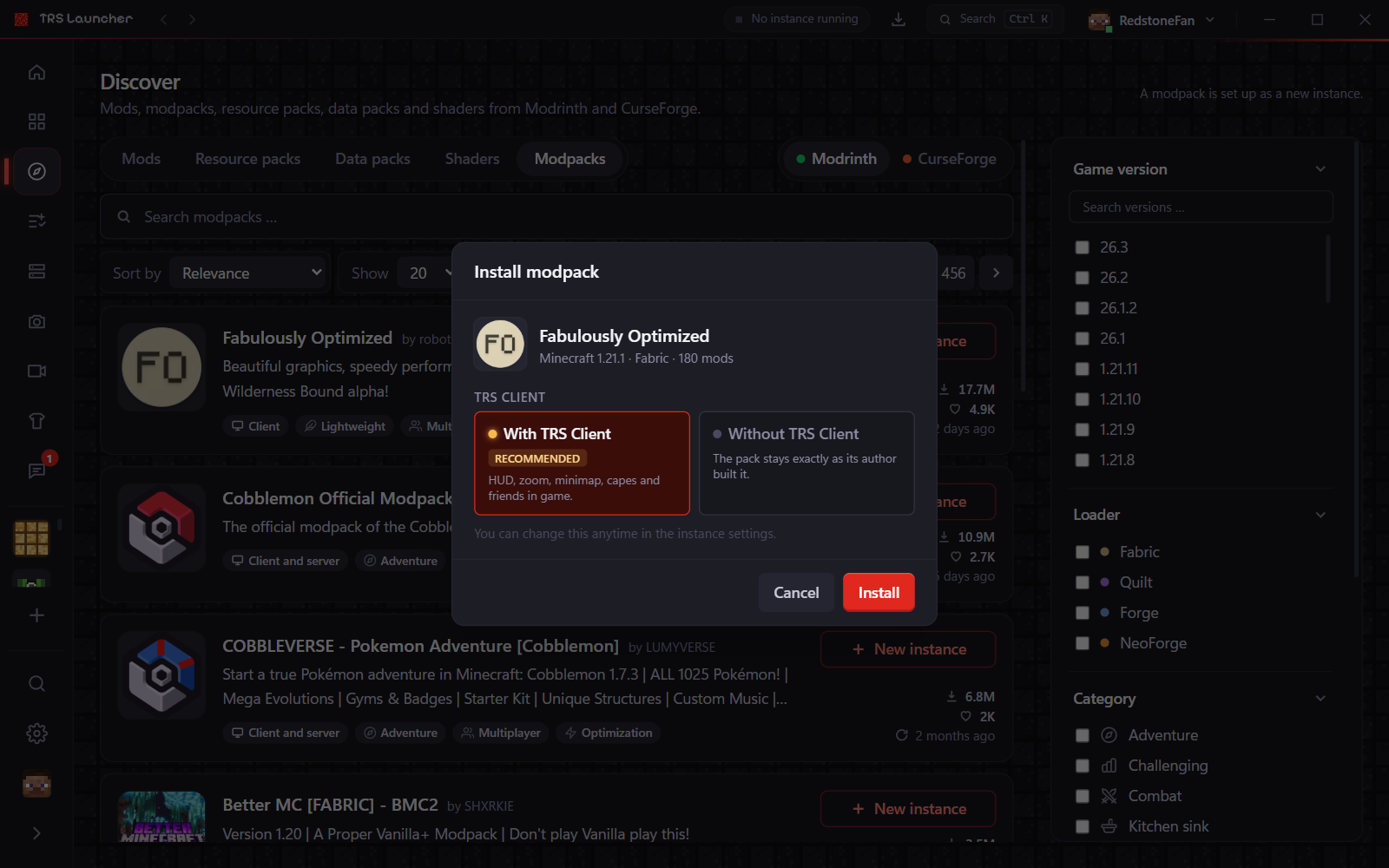
A short dialog shows the pack's Minecraft version and loader and asks once: With TRS Client (recommended) or Without TRS Client (the pack stays exactly as its author built it). Then click Install.
With or without TRS Client?
"With TRS Client" adds HUD, zoom, minimap, capes and friends in the game. If the pack already brings mods that overlap with it – another client, its own minimap or its own HUD – the launcher names them and preselects Without TRS Client. Packs with their own zoom only get a hint. If there's no TRS Client for the pack's Minecraft version and loader, the option is greyed out with the reason.
Your choice is saved in the instance. Change it any time under the instance Settings → Installation → TRS Client.
Follow the progress
The install runs in the background – you can keep using the launcher or leave the page.
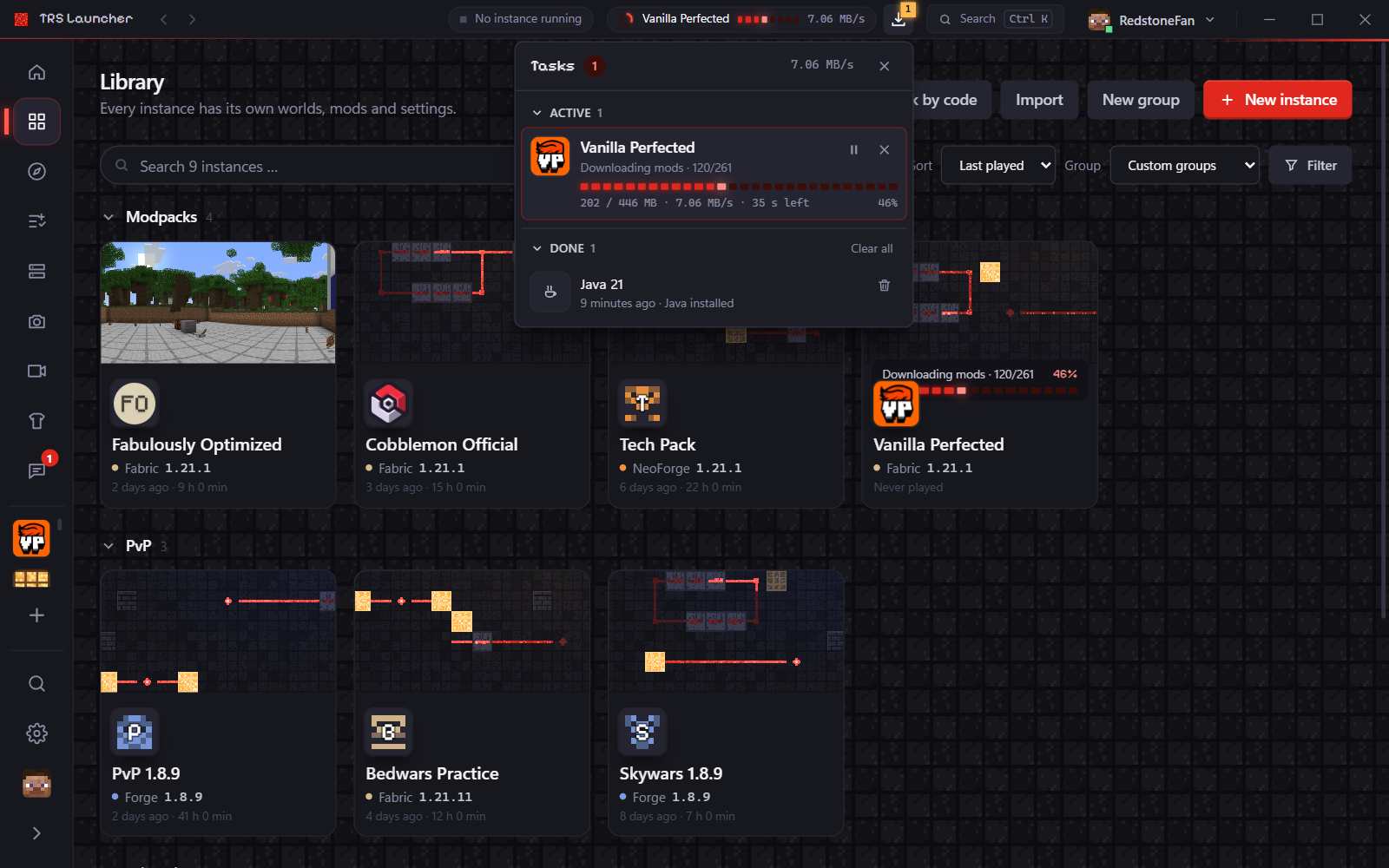
- The new instance appears in the library right away and shows the progress, for example "Downloading mods · 120/261 … 45 %". Play stays locked until everything is there.
- The tasks button in the title bar lists everything that's installing, with Pause, Resume and cancel. Cancelling removes the half-installed instance.
- Big packs download large files first and several files at the same time. You can set how many under Settings → Network → Parallel downloads.
Install from a file
Got a .mrpack (Modrinth) or .zip (CurseForge) file? Open Library → Import and click Modpack file (.mrpack, .zip) …. The pack becomes a new instance just like from Discover.
Export your own pack
Every instance can be saved as a .mrpack file – for a backup or to share:
Open the export
Instance page → Share tab → Export as modpack – or Settings → General → Export as modpack.
Choose what's included
Add a short description and tick the folders and files that go in. Mods that are on Modrinth are only linked, so the pack stays small; everything else is copied into it.
Save
Click Save as … and pick a location. Logs, crash reports, caches, sign-in files and the TRS Client itself are never included.
To share a pack with a code or a link instead of a file, see Share modpacks.
Mods
Find and install Minecraft mods, resource packs, shaders and data packs from Modrinth and CurseForge in TRS Launcher – with dependencies and updates.
Share modpacks
Share your Minecraft modpack with a code, a link or straight to friends in TRS Launcher – and push updates while everyone keeps their own changes.