
Java & memory
Minecraft: Java Edition needs Java. You don't have to install it: the launcher downloads the right Java runtime from Mojang for every Minecraft version – the same builds the official launcher uses.
Which Java for which version
| Minecraft | Java |
|---|---|
| up to 1.16 | Java 8 |
| 1.17 to 1.20.4 | Java 17 |
| 1.20.5 to 1.21.x | Java 21 |
| 26.x | Java 25 |
The launcher reads the required version from Mojang's version data and installs the matching runtime the first time
you launch. The runtimes are stored in the java folder of the launcher data and shared by all instances.
Which Java is used
The launcher looks for a Java setting in this order and takes the first one that is set:
- The instance: a custom Java path in the instance settings → Java & memory.
- The Java slot for that version: Settings → Java installations, one entry each for Java 8, 17, 21 and 25.
- "For all versions": one Java path in the same section, for everything.
- Automatic: nothing set – the launcher installs and uses Mojang's runtime.
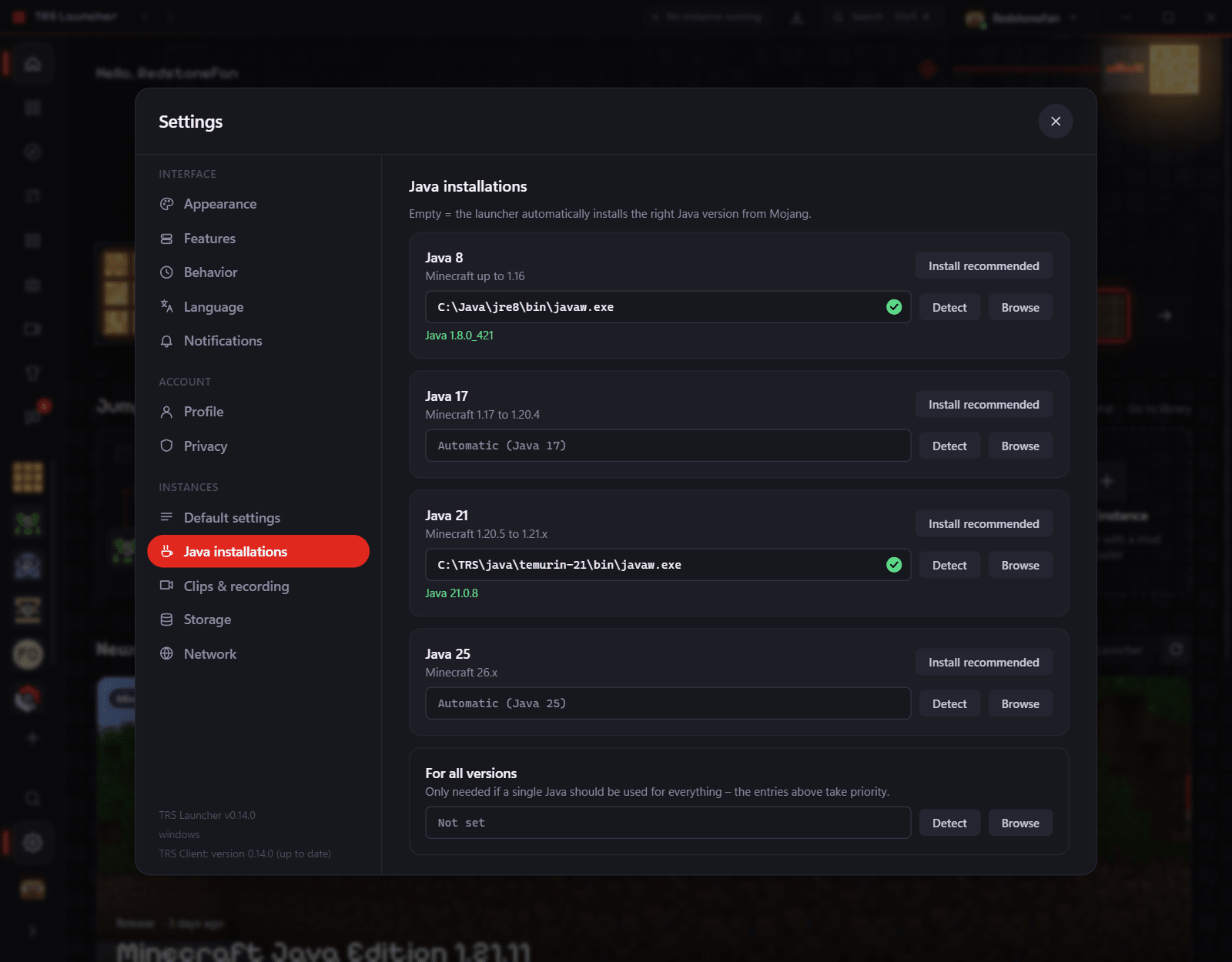
Using your own Java
Open the Java settings
Go to Settings → Java installations for all instances, or to the instance settings → Java & memory for one instance (turn on Custom Java and memory settings there).
Pick a Java
Press Detect to list the Java installations on your PC, or enter the path yourself. The path must point to the Java program itself:
java.exe or javaw.exe, for example C:\Program Files\Eclipse Adoptium\jdk-21…\bin\javaw.exe.…/bin/java, for example /usr/lib/jvm/java-21-openjdk/bin/java.Check the version
The launcher shows which Java version it found. A warning like "Java 17 – Java 21 is expected here" means the version doesn't match the slot.
Detect searches the launcher's own runtimes, JAVA_HOME and the usual install folders:
- Windows: Program Files (Adoptium, Microsoft, Zulu, BellSoft, Amazon Corretto, Semeru and others),
%LOCALAPPDATA%\Programsand%USERPROFILE%\.jdks. - Linux:
/usr/lib/jvm,/usr/lib64/jvm,/usr/java,/opt, SDKMAN,~/.jdksand~/.local/share/jdks.
Install recommended next to a slot downloads Mojang's runtime for it.
Memory (RAM)
Settings → Default settings → Memory sets the most RAM a game may use. New installations start with a value that fits your PC:
| RAM in your PC | Default for the game |
|---|---|
| 16 GB or more | 6 GB |
| 8 to 15 GB | 4 GB |
| less than 8 GB | half of it, at least 2 GB |
You can change it per instance in the instance settings → Java & memory. Values from 512 MB to 128 GB are allowed.
If the game runs out of memory, the crash helper suggests a better value and sets it with one click.
Advanced
- Minimum memory (
-Xms) in the default settings: the start value for Java. - JVM arguments: extra arguments for Java, separated by spaces – globally or per instance.
- FPS boost at launch: tuned Java settings for your Java version and memory (G1; from 12 GB with Java 21 or newer, the generational ZGC; memory reserved up front). Your own JVM arguments win where they overlap.
- High-performance graphics card: the game uses the dedicated graphics card on laptops. It only applies to the launcher's own Java.
- Allow Java versions automatically (Windows, Settings → Network): otherwise Windows asks for every Java version whether Minecraft may use the network, for example for LAN worlds.