Emotes, capes, wardrobe and accounts
Emote wheel
Hold R, point at an emote with the mouse and release the key to play it. Other players with the TRS Client see it too. If you only tap the key, the wheel stays open – click an emote, Esc closes it.
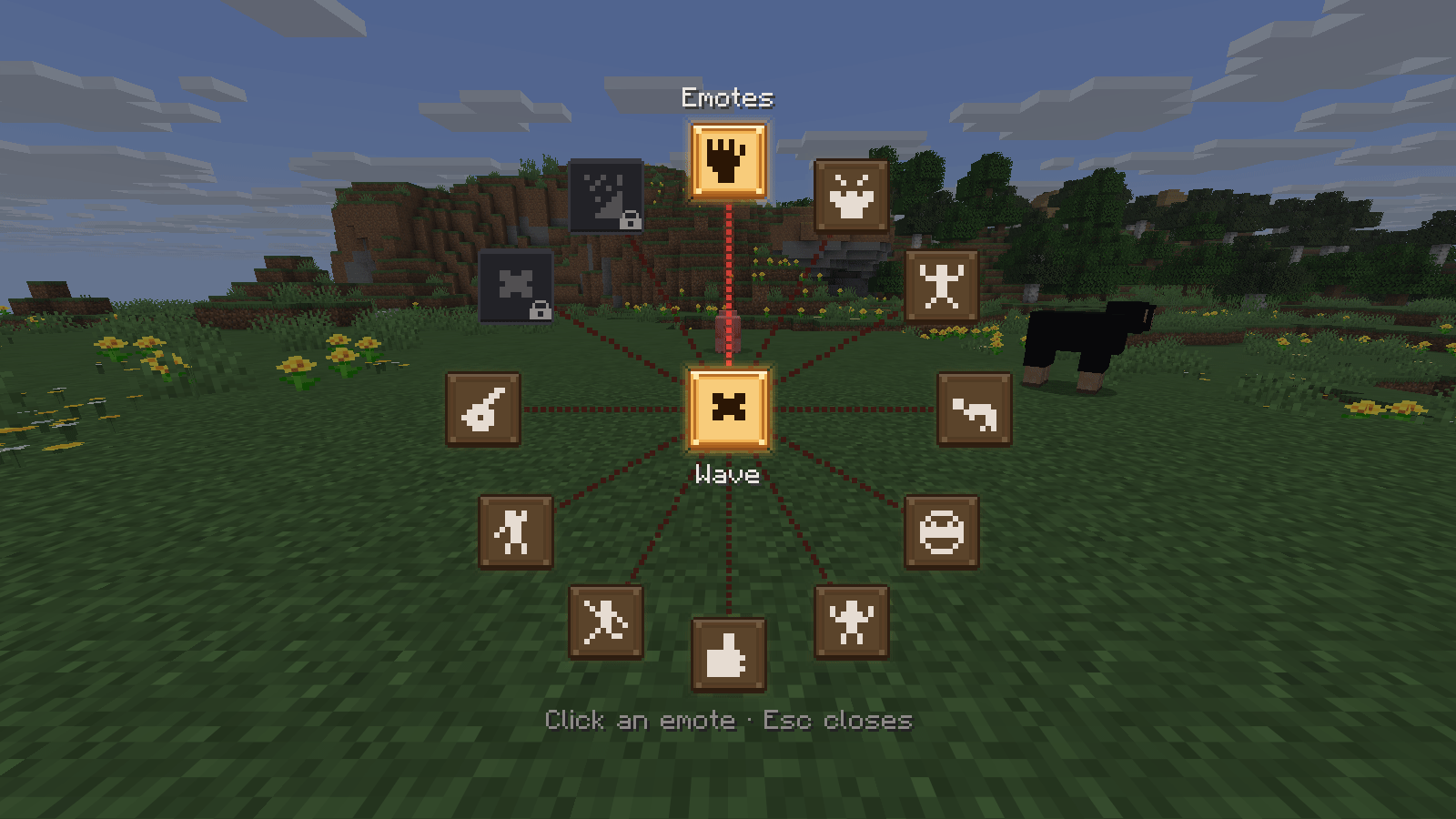
Emotes: Wave, Clap, Cheer, Bow, Facepalm, Shrug, Thumbs up, Dance, Salute, Air guitar, Redstone dance and Party. Emotes you haven't unlocked are marked Locked – some are unlocked with a code in the launcher, Party is the reward for having 10 friends. Walking, sneaking or attacking ends an emote.
Settings of the module Emotes: Camera during your emote (Unchanged, Third person behind, Third person front) and Show emotes of other players.
Wardrobe
Open the wardrobe with the Wardrobe button under your figure on the title screen, from the TRS menu, from the pause menu or with the key Open wardrobe (unbound by default). It has four tabs, all with a big 3D preview:
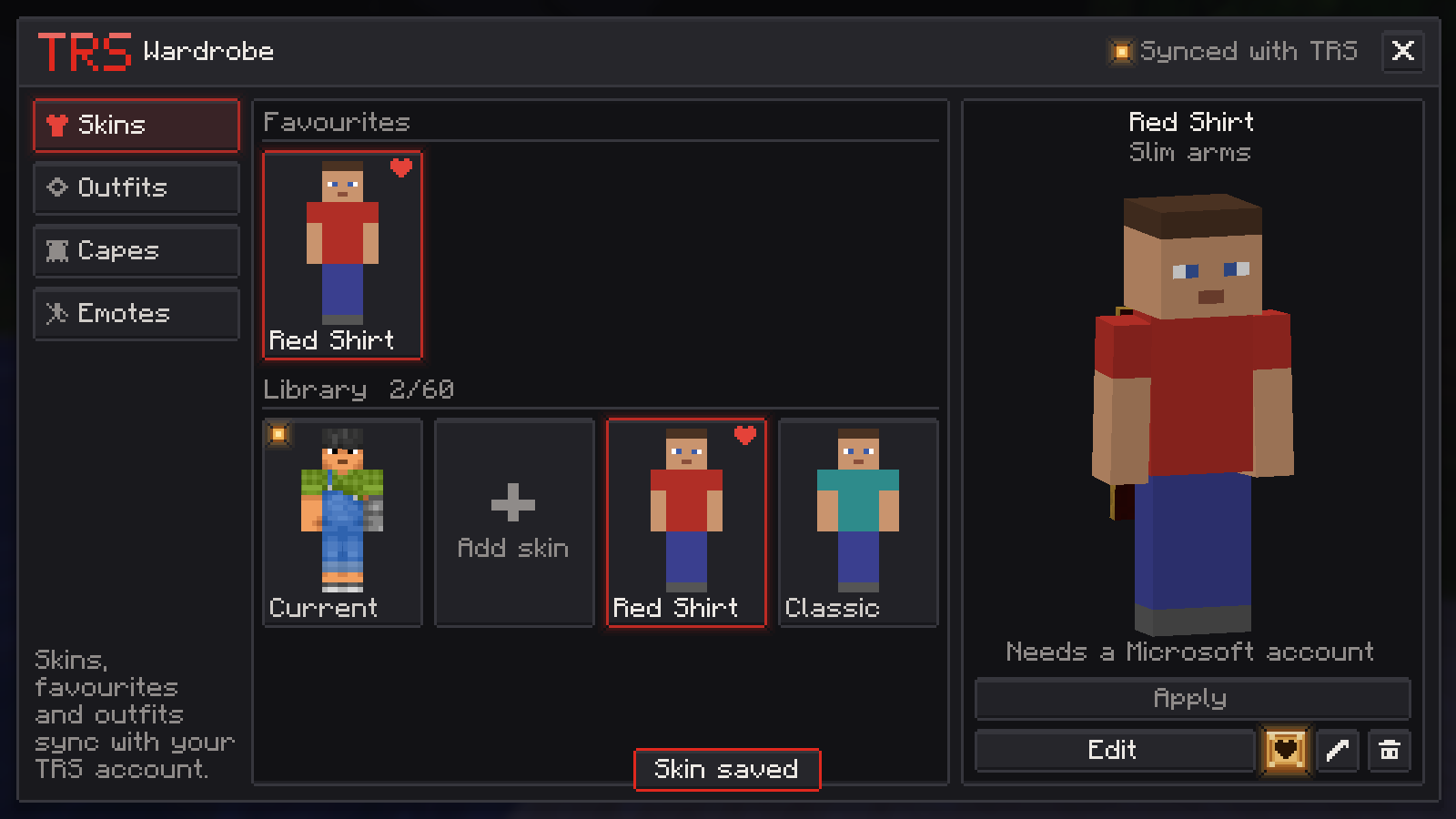
- Skins – the Current card shows the skin your account wears right now. Below are your favourites and your library. Add skin takes a file, a link, a player name or Paint a new skin. Apply makes it your Minecraft skin right away – others see it after rejoining.
- Outfits – Save current look stores skin and cape together; Put on wears an outfit.
- Capes – your Minecraft capes and your TRS capes; No cape takes it off. Approved capes you uploaded can be offered to a friend with Share with a friend.
- Emotes – arrange your emote wheel: pick a slot, then an emote. Right-click empties a slot; an empty wheel shows all emotes.
Skin editor
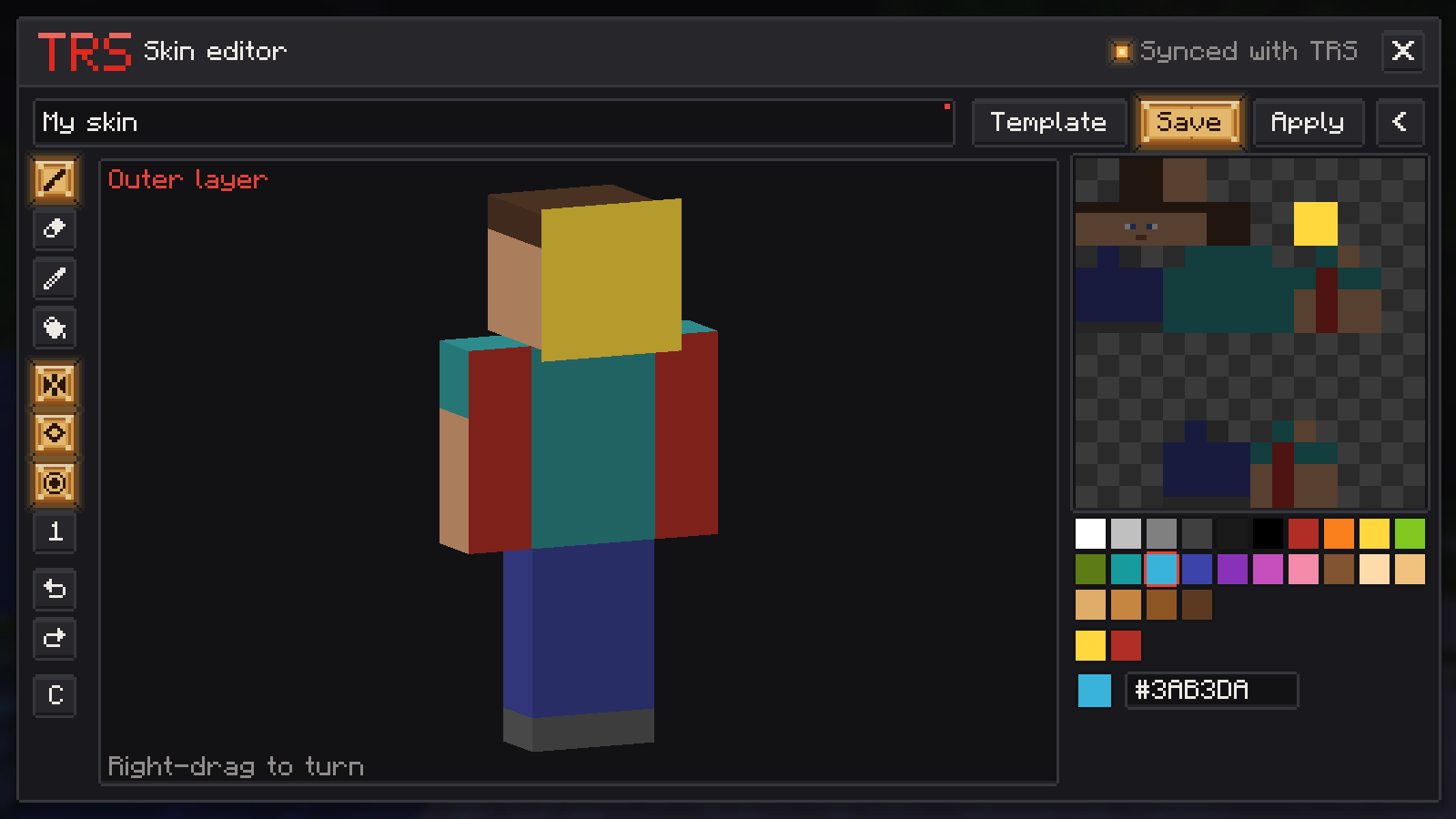
Paint straight onto the 3D figure or the flat skin.
| Tool | Key |
|---|---|
| Brush | B |
| Eraser | E |
| Eyedropper | I |
| Fill | G |
| Mirror left/right | M |
| Undo / Redo | Z / Y |
You can switch between base layer and outer layer, pick colours from a palette with recent colours or as hex, and start from Blank (classic), Blank (slim) or your Current skin. Right-drag turns the figure.
TRS capes and badges
The module TRS Online Features shows TRS capes and the TRS badge – a small glowing redstone dust pile in front of the names of players who play with the TRS Client right now.
| Setting | Default |
|---|---|
| Badge in the tab list | on |
| Badge above names | on |
| Show TRS capes | on |
| Show TRS cosmetics (hats) | on |
| Sync with TRS account | on |
TRS capes are chosen in the wardrobe or in the launcher; you upload your own capes in the launcher.
Cape physics
The module Cape Physics makes capes (Mojang, OptiFine, TRS) move like cloth: they swing when you walk, turn, jump and sneak. A turning live preview of your own player shows every change.
| Setting | Options |
|---|---|
| Style | Smooth, Blocky |
| Wind | Off, Waves, Gusts – plus wind strength |
| Movement | Vanilla, Swinging, Dungeons (calm) |
| Gravity, Lift when moving, Stiffness | 0 – 200 % |
| Detail | High, Medium, Low (faster) |
| For | Only my own, All players |
Switch accounts in the game
Open Accounts in the TRS menu, the pause menu or the title screen bar and click Switch – no restart needed. Leave the world first.
Version notes
- Emotes are not available on 1.7.10, 1.13.2 and Forge 1.14.4.
- TRS capes and badges are not shown on 1.7.10, 1.13.2 and Forge 1.14.4.
- Cape physics is not available on 1.7.10, 1.13.2 and 1.14.4.
- The wardrobe and account switching work in every version.
Circuit library
Ready-made redstone circuits in the TRS Client – browse them in 3D, show them as ghost-block templates in your world and submit your own.
Screenshots, clips and panoramas
Screenshot preview and editor after F2, share links, clips with F9 and F10 through the TRS Launcher, and 360° panorama screenshots in the TRS Client.