
Chat and comfort
Chat
Chat Improvements
On by default (category Chat):
| Setting | Default |
|---|---|
| Timestamps (with seconds, in 12-hour format) | off |
| Stack identical messages (x2, x3) | on |
| Chat history (lines) | 500 (100 – 1000) |
| Copy a line with | Both (Ctrl + left click, right click) |
| Clickable coordinates (save as waypoint) | on |
Mentions
Highlights chat lines that mention My name or your own keywords (separated by ;), in a highlight colour and bold, optionally with a sound (pling, bell, experience orb or chime). Your own messages don't count. Off by default.
Chat Filter
Hides chat messages that contain one of your words, for example discord.gg;buy now. Only on your screen – nothing is sent or reported. Off by default.
Text Hotkeys
Four keys you bind yourself, each sends a fixed text or command. At most one message per second. Off by default.
Auto Reconnect
When the connection drops or the server restarts, the disconnect screen reconnects after a countdown – click to cancel.
| Setting | Default |
|---|---|
| Wait before reconnecting | 10 s |
| Attempts per server | 5 |
| Reconnect on | Connection loss, restarts, full server (or: everything except bans and whitelist) |
| Never on these reasons | your own list, e.g. maintenance |
It never reconnects after a ban, a whitelist kick, a login from another place or a wrong game version.
Queue & Alerts
Tells you when you are (almost) through a server queue – known queue plugins work out of the box, and you can add your own patterns (# = position). While the game is in the background it also tells you when someone mentions you, when you die or get disconnected: a notice, an optional sound and a flashing taskbar (from Minecraft 1.13).
Error screen and sign in again
When a server says "Invalid session" or you get disconnected, the error screen in the TRS style offers:
- Sign in again – the TRS Launcher gets a fresh session, the game uses it right away and connects again. No restart needed; the launcher must be open.
- Connect again, Switch account, Copy error and Server status.
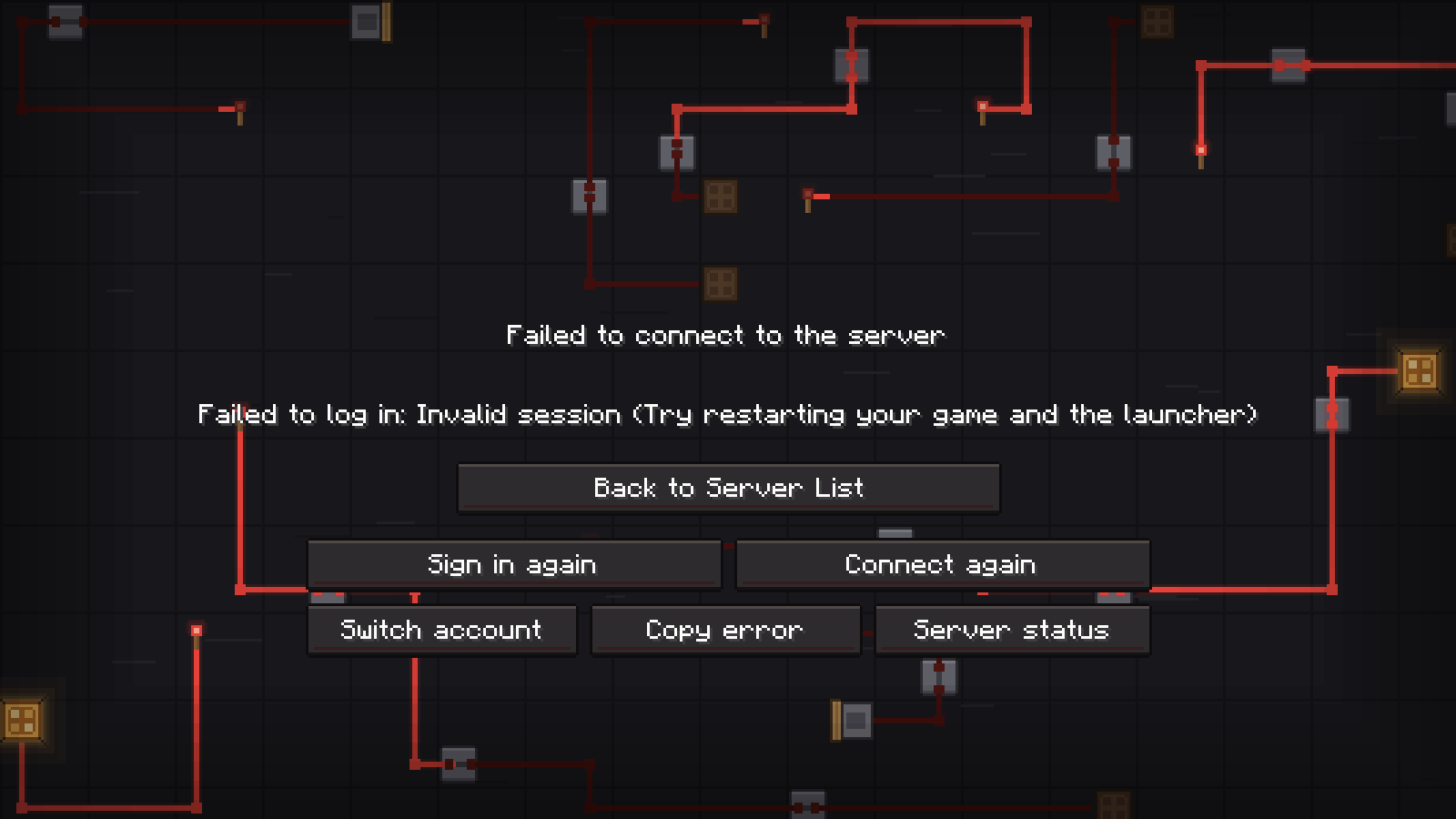
To get the vanilla screen back, turn off Menu Style → Error screens (connection lost, kicked).
Server list
With the menu style on, the multiplayer screen gets a Ping test button: it measures all your servers (at most four at a time, once every 10 seconds) and sorts the list by ping – pinned servers stay on top.
Better Tooltips
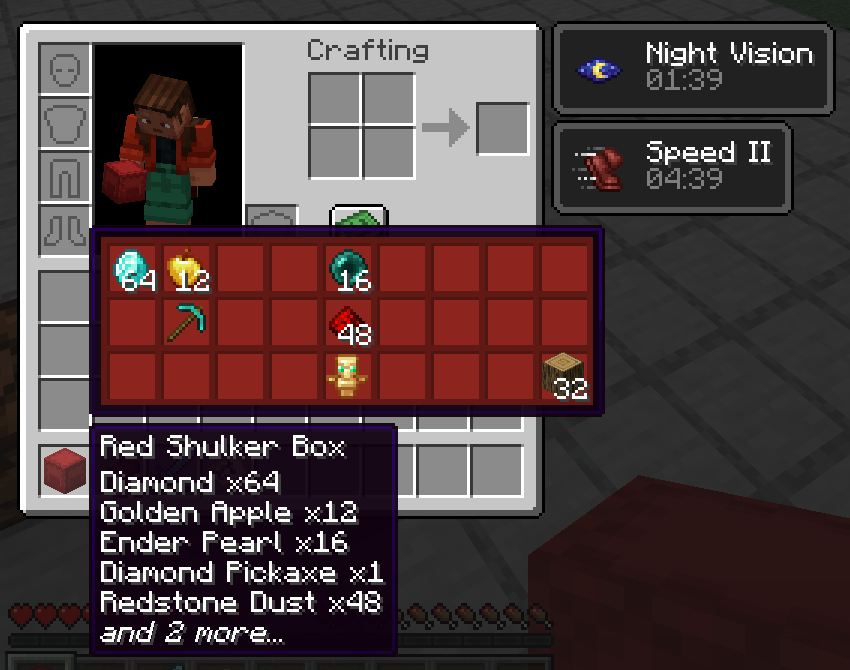
On by default. Hover over items to see:
- Shulker box contents as a grid in the box colour (from Minecraft 1.11),
- a Map preview of filled maps (small or large),
- Durability as a number, percent or both,
- Hunger and saturation of food as drumsticks,
- Compact enchantments – hold Shift for the full list.
Server profiles
Save a setup for a server – modules on or off, their settings and optionally a HUD profile. The TRS Client switches to it when you join and back to Standard when you leave.
Open server profiles
TRS menu → Profiles → tab Server profiles.
Create a profile
Click New server profile and enter the servers, e.g. hypixel.net; *.minemen.club – or choose singleplayer.
Save your setup
Join the server, change modules as you like and click Remember current setup for this server.
Up to 32 server profiles with up to 12 servers each. Show a message when switching is on by default. Server profiles stay on this PC – they are not synced because they contain server addresses.
Key bind search
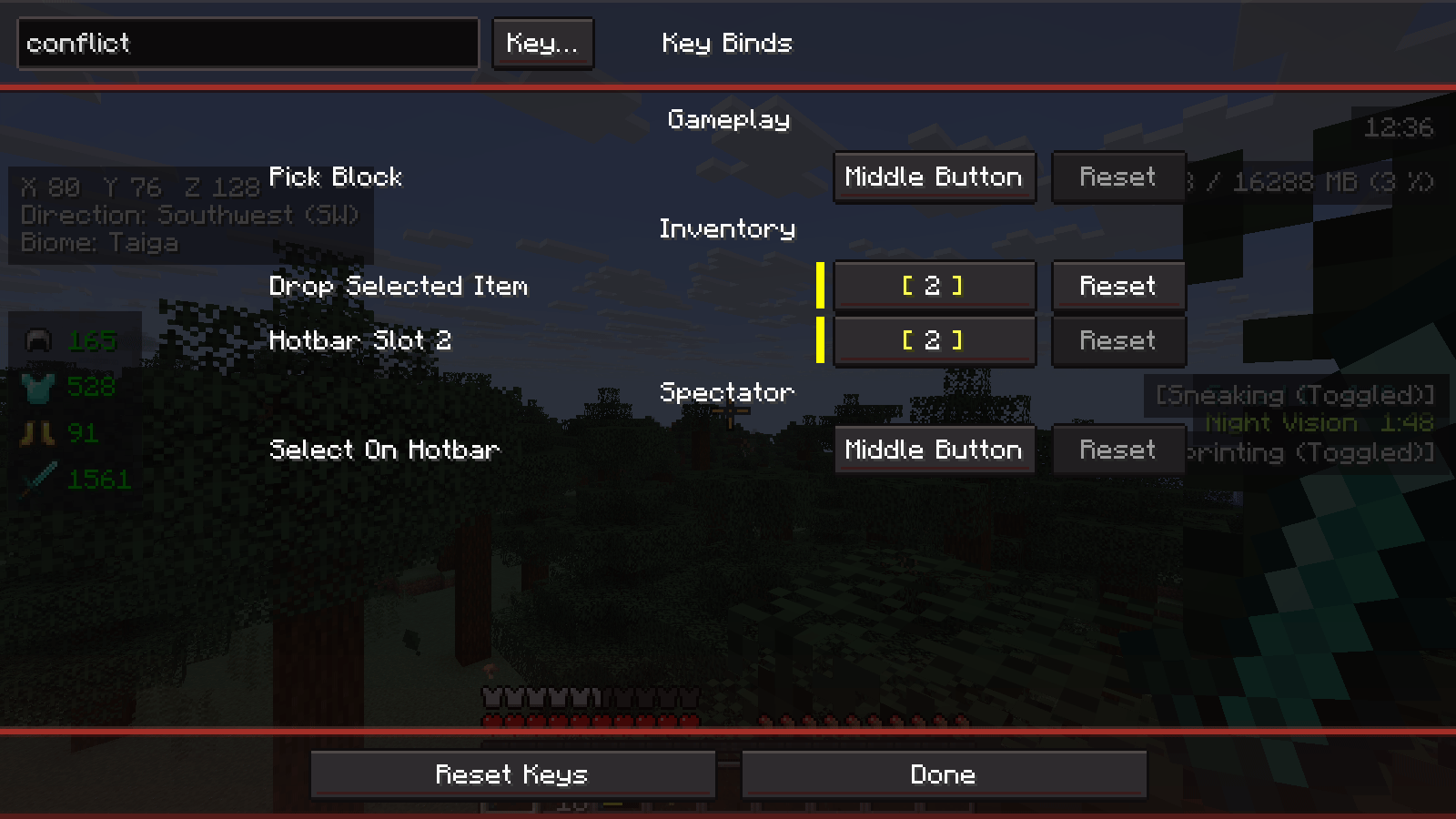
Minecraft's Controls → Key Binds gets a search box. Combine terms with spaces:
| Search | Finds |
|---|---|
| a name | key binds with that name |
key:R, key:2 | everything on that key |
mouse, key:mouse4 | mouse buttons |
mod:sodium | the keys of one mod |
conflict | keys used twice |
unbound | actions without a key |
The Key… button next to it shows everything on the next key or mouse button you press.
Scoreboard, tab list, boss bar and titles
- Scoreboard – move and resize it in the HUD editor, change its background and Hide red numbers.
- Tab List Ping – the ping of every player in milliseconds instead of bars, optionally coloured by latency.
- Boss Bar – move and resize it in the HUD editor.
- Titles – resize the big title texts of servers and move them in the HUD editor.
Warnings
Short, subtle notices: armour or tool almost broken (at 10 %), low hunger, low health, inventory full – with an optional sound, repeated at most every 60 seconds. After dying, an arrow and the distance show you the way back to your death point.
Streamer Mode
Replaces your name – and if you like the names of other players – in chat, tab list, name tags and scoreboard with a name you choose, and hides server addresses in the server list and the server HUD. Bind a Toggle key on the module page to switch it quickly. Only on your screen.
Version notes
- Mentions, Chat Filter, Auto Reconnect, Queue & Alerts, Better Tooltips, Scoreboard, Tab List Ping, Boss Bar, Titles, Warnings and Streamer Mode are not available on 1.7.10 and 1.13.2.
- The key bind search, the ping test and the new error screen work from 1.8.9 on (not on 1.7.10 and 1.13.2).
- Titles: not on 1.8.9 – 1.12.2. Moving works from Minecraft 1.20.5; before that only the size can be changed (Fabric).
- On Forge 1.14.4, Chat Improvements, Mentions, Chat Filter, Better Tooltips, Scoreboard, Tab List Ping, Boss Bar, Titles and Streamer Mode are missing.
- Server profiles and text hotkeys work in every version.
World notes
A notebook for every world and server in the TRS Client – checklists, clickable coordinates, a note pinned to the HUD and sync with your TRS account.
Social in game
Chat with your TRS friends and groups inside Minecraft, send pictures and server invites, get notifications with quick reply and report abuse.