Instances
Every instance has its own Minecraft version, mod loader, mods, worlds and settings. This page shows how to keep them organised and what the instance page offers.
The library
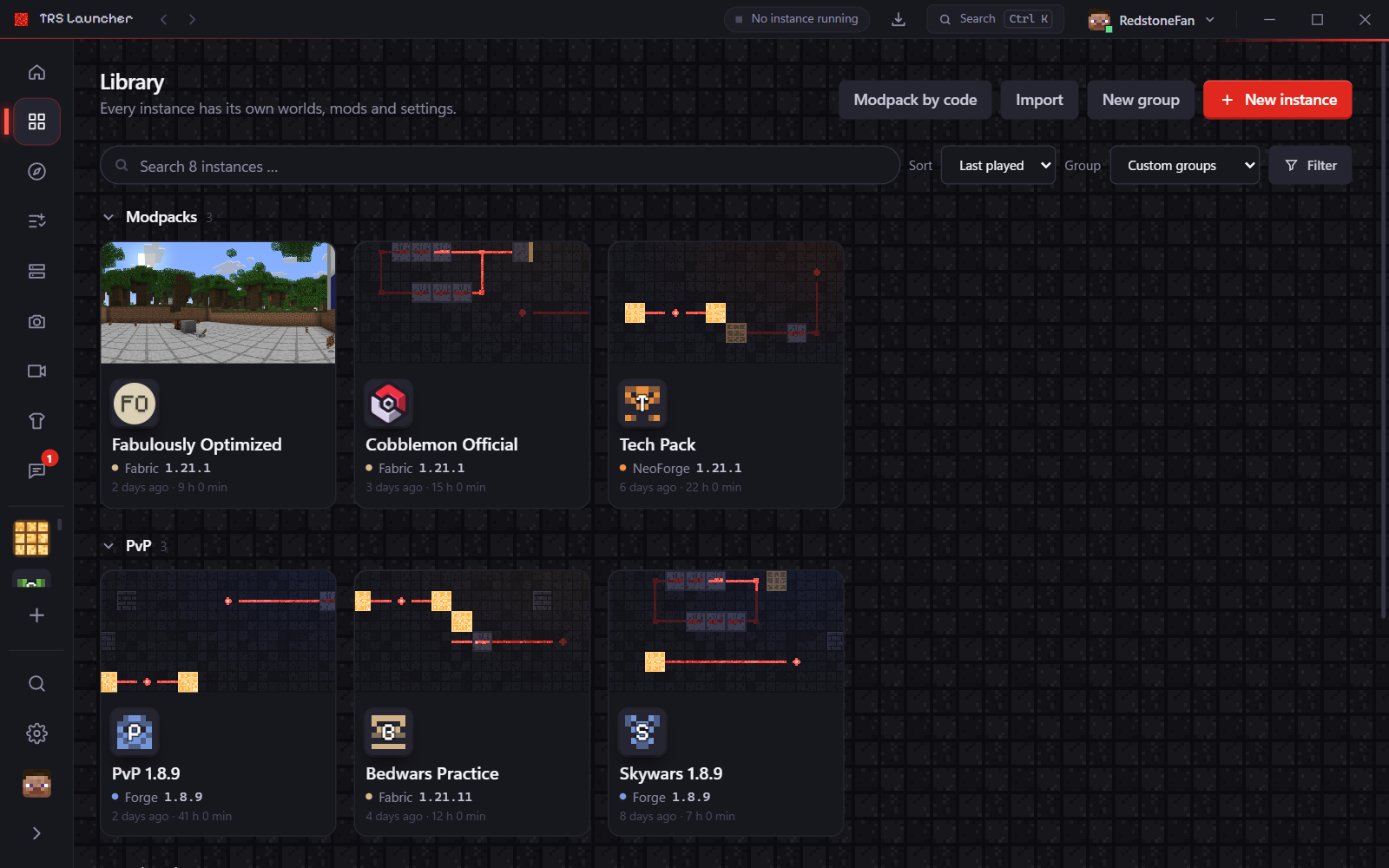
Library in the left sidebar shows all your instances as cards.
- Search by name, Sort by last played, name, created, play time or version.
- Group by mod loader, Minecraft version or your own groups, and Filter by loader and version.
- New group creates your own group (for example "PvP" or "With friends"). An instance belongs to at most one group.
- The … menu on a card offers Settings, Move to group, Open folder and Delete.
The instance page
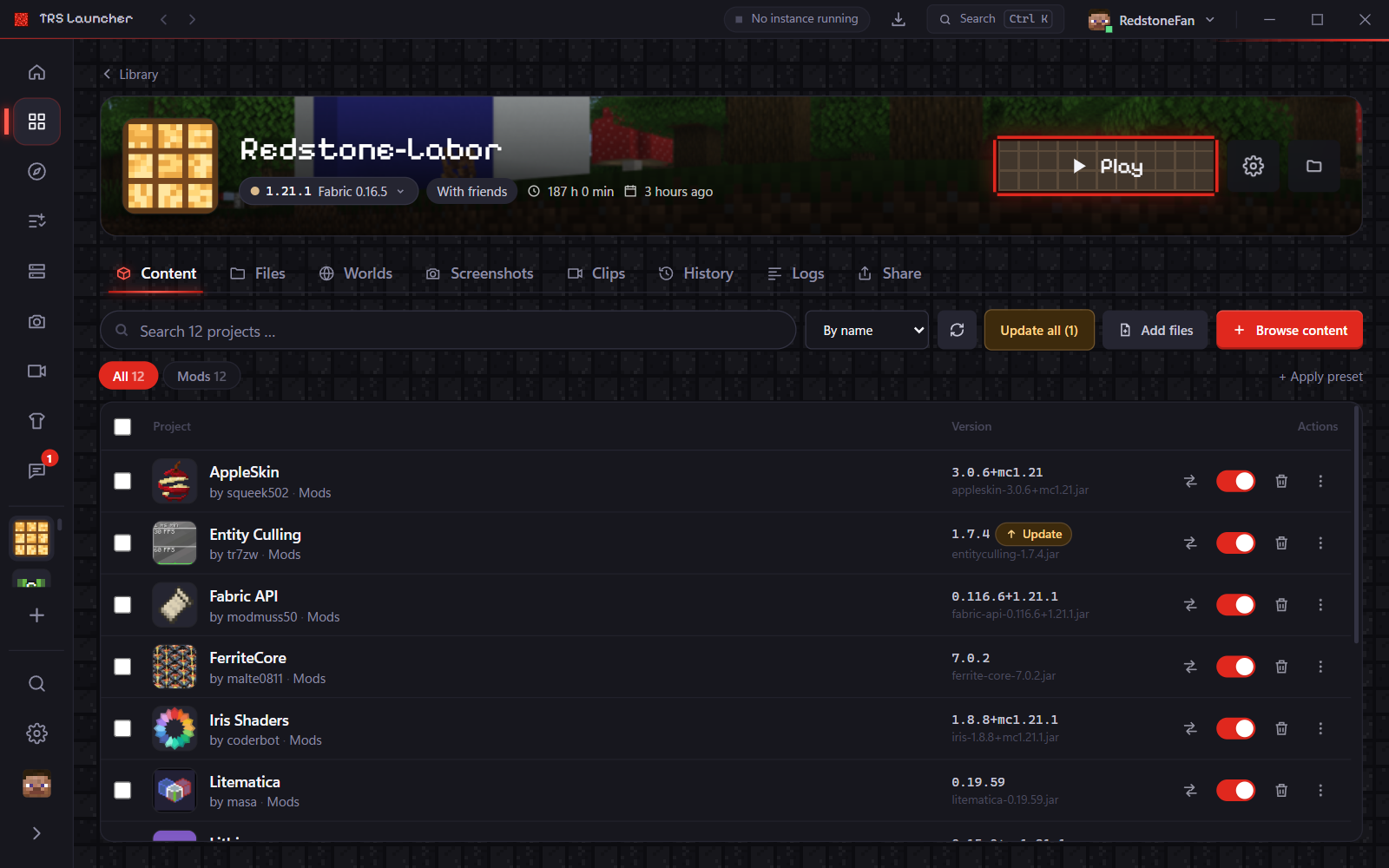
Click an instance to open its page. At the top you see its icon, name, version, play time and last played date, Play/Stop, Settings and Open folder. Below is a tab bar – the page remembers the last tab for every instance, and the arrow keys switch tabs.
| Tab | What it does |
|---|---|
| Content | Mods, resource packs, shaders and data packs in one list – see Mods. |
| Files | Browse the instance folder, create folders and files, rename, move to the trash, upload by drag & drop. Everything stays inside the instance folder. |
| Worlds | Your worlds with game mode, version, size and date: open the folder, Back up (ZIP) into the backups folder or delete. Below: the instance's servers with Join and Ping test. |
| Screenshots | The screenshots of this instance. Any screenshot can become the instance banner. |
| Clips | Clips recorded in this instance (Windows) – see Clips & screenshots. |
| History | Launches, crashes, installed mods and version changes. |
| Logs | The live log and older logs, crash reports and the launcher's output. |
| Share | Share the modpack, export it as a file, share the log, back up a world or pick files. |
Logs
The Logs tab shows the live log while the game runs and any older log file (also packed .log.gz files) or crash report.
- Errors, Warnings, Info and Debug are switches – combine them as you like. TRS shows only lines of the TRS Client, Chat only chat messages, All shows everything again.
- Search with Ctrl F, collapse and expand stack traces, copy the visible lines or switch to full screen.
- Share log uploads the log to mclo.gs after a confirmation – login tokens and your user name are removed first – and gives you a link and a QR code.
When the game crashes
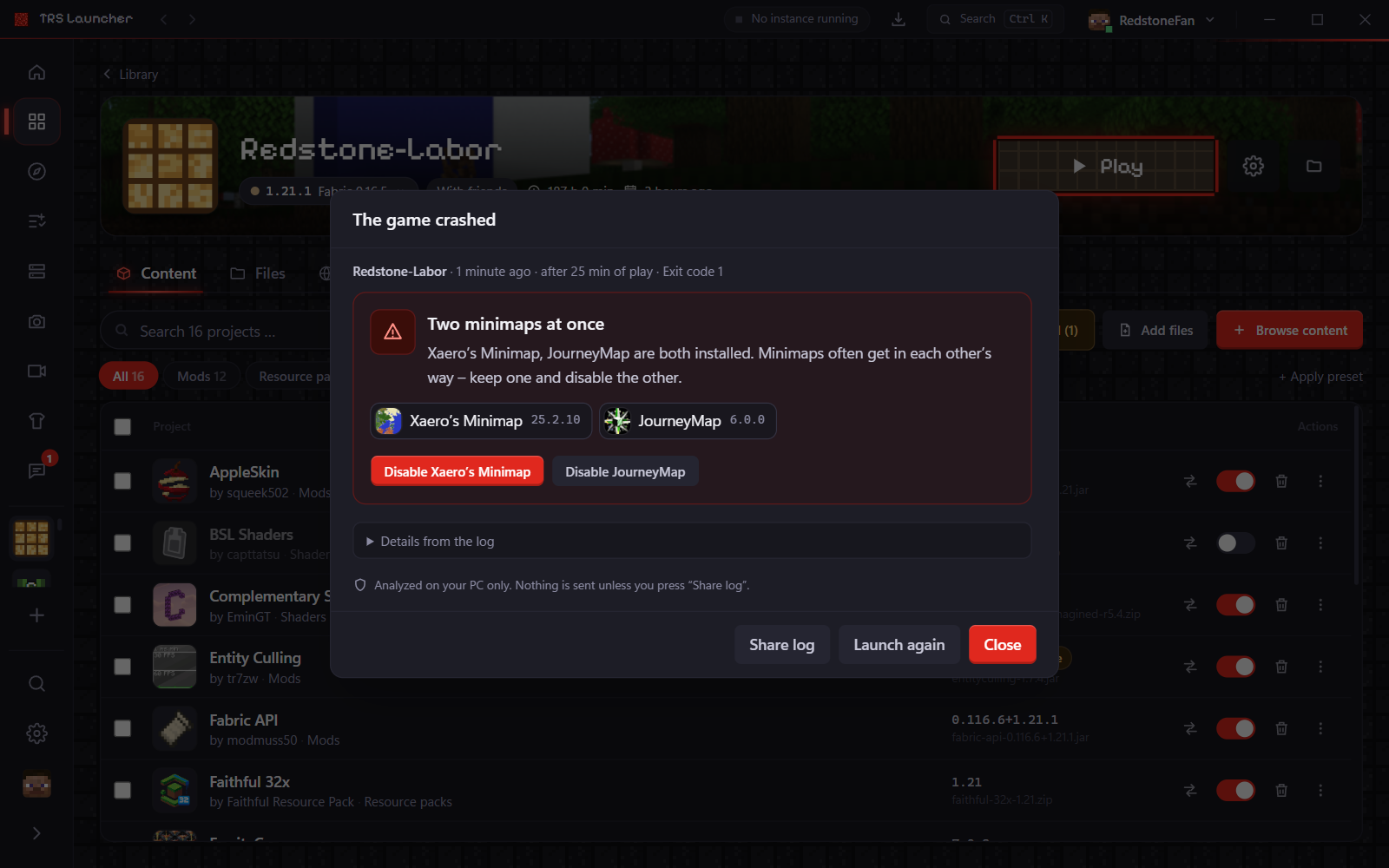
After a crash the launcher reads the crash report and the log on your PC and explains in plain words what happened: which mods are involved, missing or wrong dependencies, the same mod twice, too little memory, the wrong Java version, graphics driver problems or damaged files.
Depending on the cause you get buttons like Disable …, Install …, Remove duplicates, Increase RAM to …, Use Java …, Update TRS Client and Launch again. Every change is confirmed first and noted in the history. You can open earlier crashes from the History tab or analyse any older log in the Logs tab.
Instance settings
Open them with Settings on the instance page or from the card menu. Changes save by themselves.
- General: image and Banner, Library group, Update channel for content (Stable, Beta, Alpha), Duplicate, Export as modpack and Delete instance.
- Installation: Minecraft version and mod loader (Edit opens "Change version"), TRS optimization (vanilla only), the TRS Client switch, the Graphics mode of the TRS Client (Pretty or Max FPS), FPS boost at launch, and Repair or Reinstall under Maintenance.
- Window: fullscreen and window size for this instance.
- Java & memory: Java installation, Memory, JVM arguments and environment variables for this instance.
- Launch hooks: commands before launch, as a wrapper and after exit.
- Sync: keep single items (game options, server list, resource packs …) separate from the shared ones.
Empty or switched-off values use the global Settings.
Change the version
Settings → Installation → Edit switches an instance to another Minecraft version or mod loader. The launcher warns you about older versions and loader changes, then looks for compatible versions of your mods from Modrinth and CurseForge: Update mods to compatible versions or Disable incompatible.
Repair and reinstall
- Repair checks every game file by checksum and downloads damaged ones again. Worlds and mods are left untouched.
- Reinstall downloads the game version, mod loader and libraries again from scratch. Worlds, mods and settings are kept.