
Social in game
Social brings your TRS friends into the game: chat, friends list and friends' worlds – live, without reloading. It uses the TRS online features, so the TRS services must be on in the launcher and you need a Microsoft account.
Open it from the title screen, the TRS menu, the pause menu or with the key Open social (unbound by default). It has the tabs Chat, Friends and Worlds.
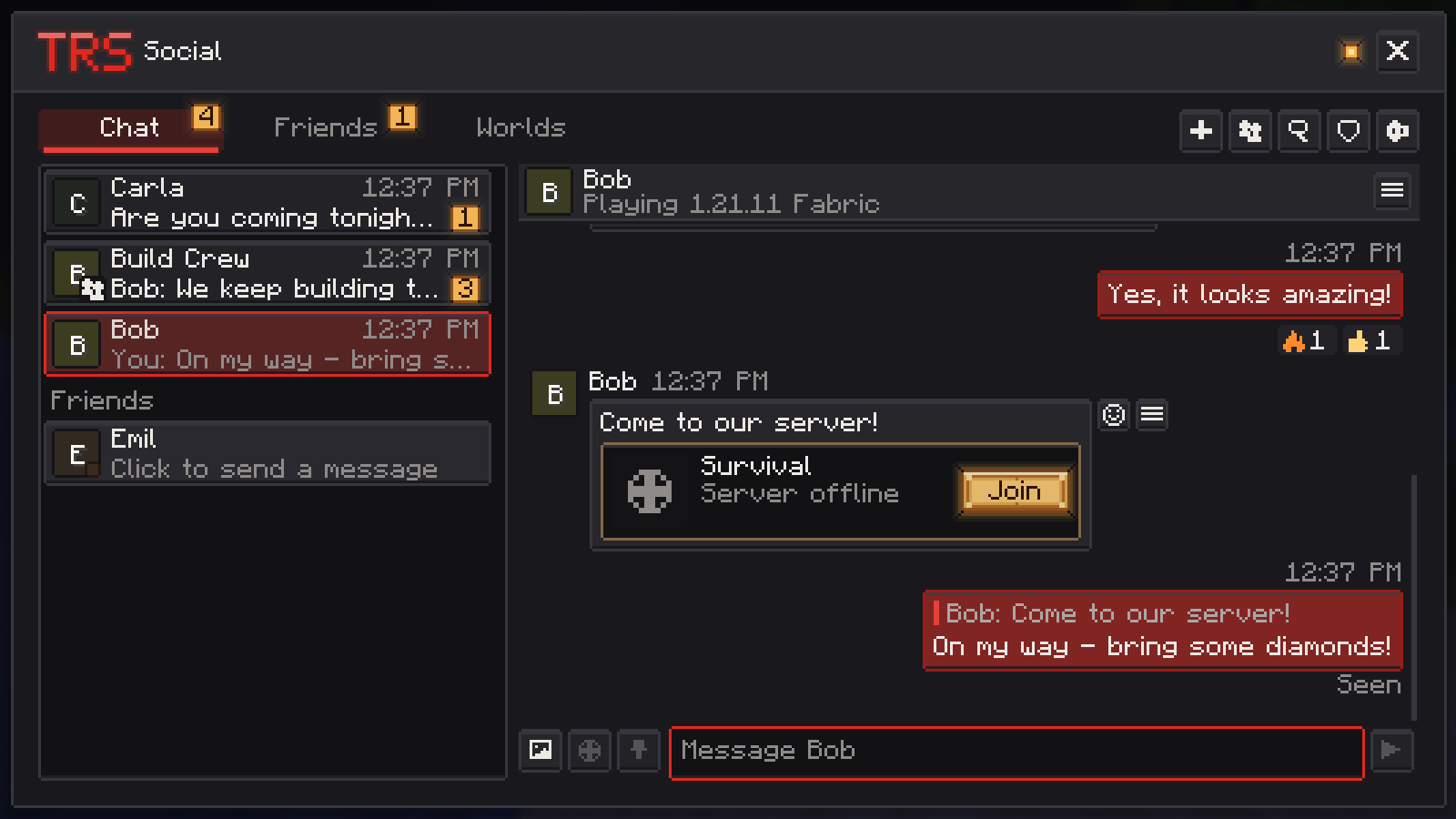
Chat
- Write to friends and groups. Create a group from your friends, rename it, add or remove members.
- Reply to a message, copy it, edit or delete your own, mark a chat as unread and react.
- See when someone is typing or has read your message. Both can be turned off in Chat settings – it works both ways.
- Select pictures sends up to 10 screenshots of this instance at once. Click a picture to view it large.
- Invite friends to the server you are on: they see an invite card with the server icon and player count and join with one click. Before you leave your own world or server you are asked.
- Waypoint cards: see Share waypoints.
Friends
The Friends tab shows your friends with their Minecraft faces, who is online and what they play, next to Requests (including cape offers) and Blocked players.
- Add a friend by Minecraft name or UUID.
- Accept or decline requests.
- Remove or Block a player – blocked players can't find you or send requests.
Notifications
New messages, server invites, friend requests, cape offers and friends coming online appear as small notifications for a few seconds – above every menu, and out of the way of Minecraft's own pop-ups.
Press Y (Quick reply / join) to answer the newest message or join an invite without leaving the game. In the quick reply, Enter sends, Shift + Enter starts a new line and Esc closes.
Settings in the TRS menu under Social:
| Setting | Default |
|---|---|
| Notifications | on |
| Position | Top right |
| Duration | 5 s (3 – 10 s) |
| Sound | on |
| Do not disturb | off |
| Quiet in fullscreen | off |
| New messages / Server invites / Friend requests and cape offers / Friends coming online | on |
Report and stay safe
Report messages, pictures, players and groups with a reason (insult or hate, spam, inappropriate, scam or phishing, harassment, other) and an optional note. The team sees the reported content and the messages around it, and you get feedback when it has been looked at.
If the team muted you in chat, the chat shows it clearly with the end date. Your sanctions and appeals are listed in Social as well.
Version notes
Chat and comfort
Chat mentions, filter and history, auto reconnect, better tooltips, server profiles, key bind search, streamer mode and the sign-in-again error screen.
Default keys
All default keys of the TRS Client – TRS menu, zoom, freelook, emote wheel, world map, signal overlay, clips, waypoints and more – and how to change them.