World notes
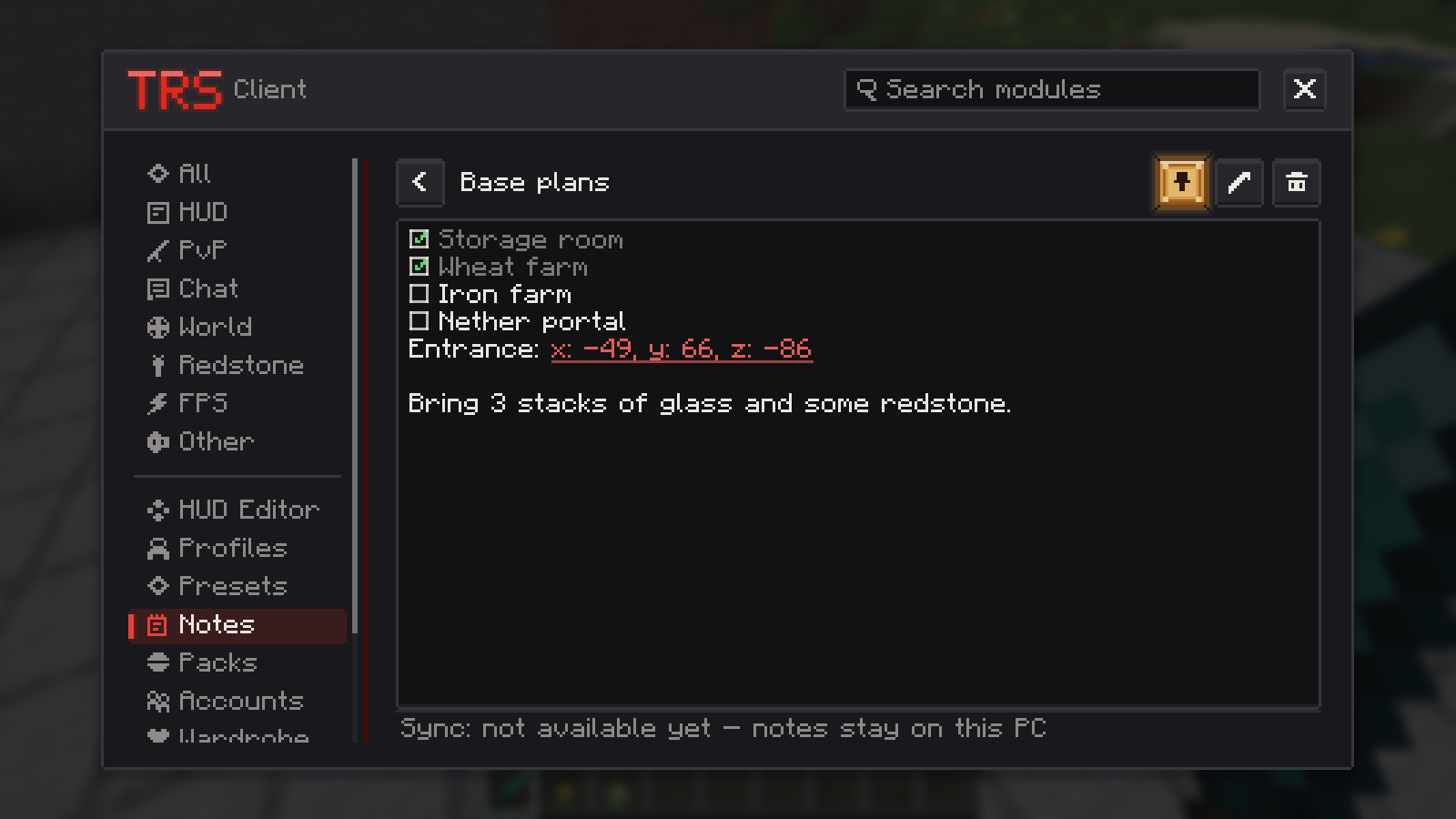
Every world and every server has its own notebook. Open it with Notes in the TRS menu or with the key Open notes (unbound by default – set it in the Minecraft controls or on the World Notes page).
Write a note
Join the world or server
Notes belong to the world you are in. Notes of other worlds are under Other worlds.
Create the note
Click New note and write a title and text. A world can have up to 200 notes.
Search
The search box finds notes of the world you are in.
Checklists
Start a line with [ ] – or press Checklist – and tick the boxes right in the note. Enter continues the list. The list shows how many items are done.
Base plans
[x] Iron farm
[ ] Villager trading hall
[ ] Nether portal x: 120, y: 70, z: -48
Clickable coordinates
Coordinates like x: 100, y: 64, z: -20 become links. My position inserts where you are standing. Click a coordinate to:
- Show on world map,
- set a Temporary waypoint – it disappears when you get there,
- Save as waypoint.
Pin a note to the HUD
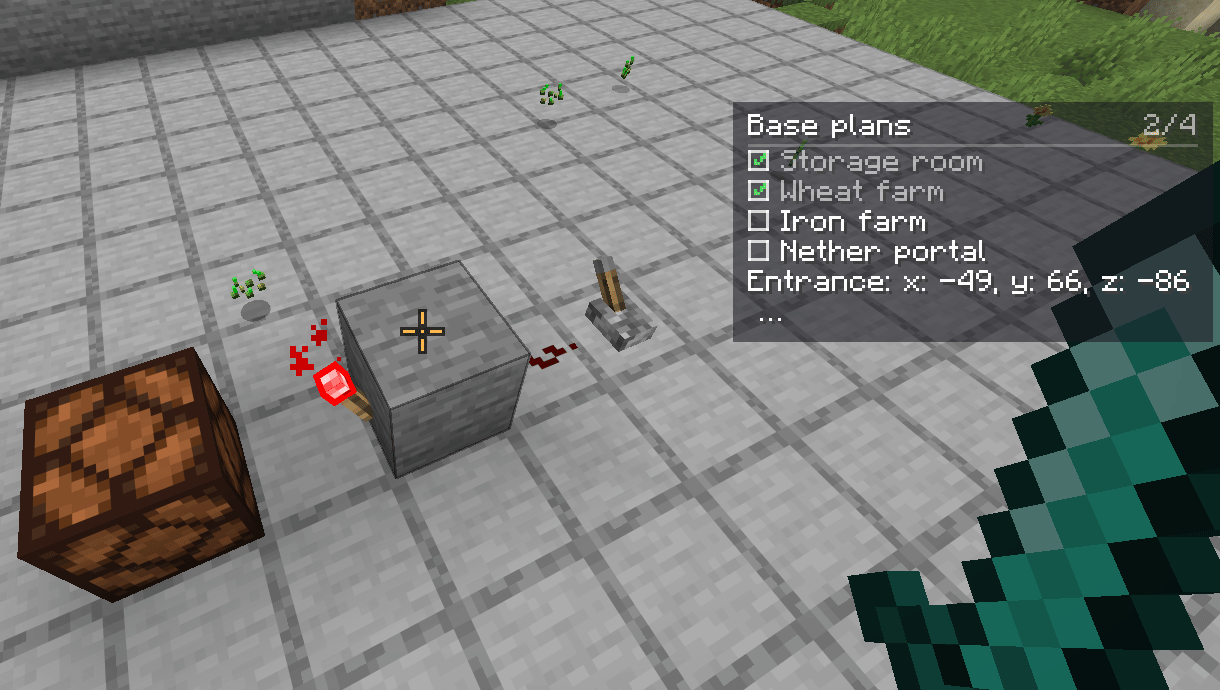
The pin button shows a note – with its checklist – on screen while you are in that world. Move and resize it in the HUD editor like every other HUD element; the module Pinned Note has the settings Lines and Width.
Sync
Notes are saved in config/trsclient/notes and synced with your TRS account note by note:
- the newest change of a note wins,
- deleted notes are deleted on all your PCs,
- changes from another PC arrive within seconds.
Only you can read your notes. To keep them on this PC only, switch off Sync with TRS account on the World Notes page.
Version notes
Screenshots, clips and panoramas
Screenshot preview and editor after F2, share links, clips with F9 and F10 through the TRS Launcher, and 360° panorama screenshots in the TRS Client.
Chat and comfort
Chat mentions, filter and history, auto reconnect, better tooltips, server profiles, key bind search, streamer mode and the sign-in-again error screen.