Screenshots, clips and panoramas
Screenshot preview
After F2 a small preview of your screenshot slides in at the top right for a few seconds.
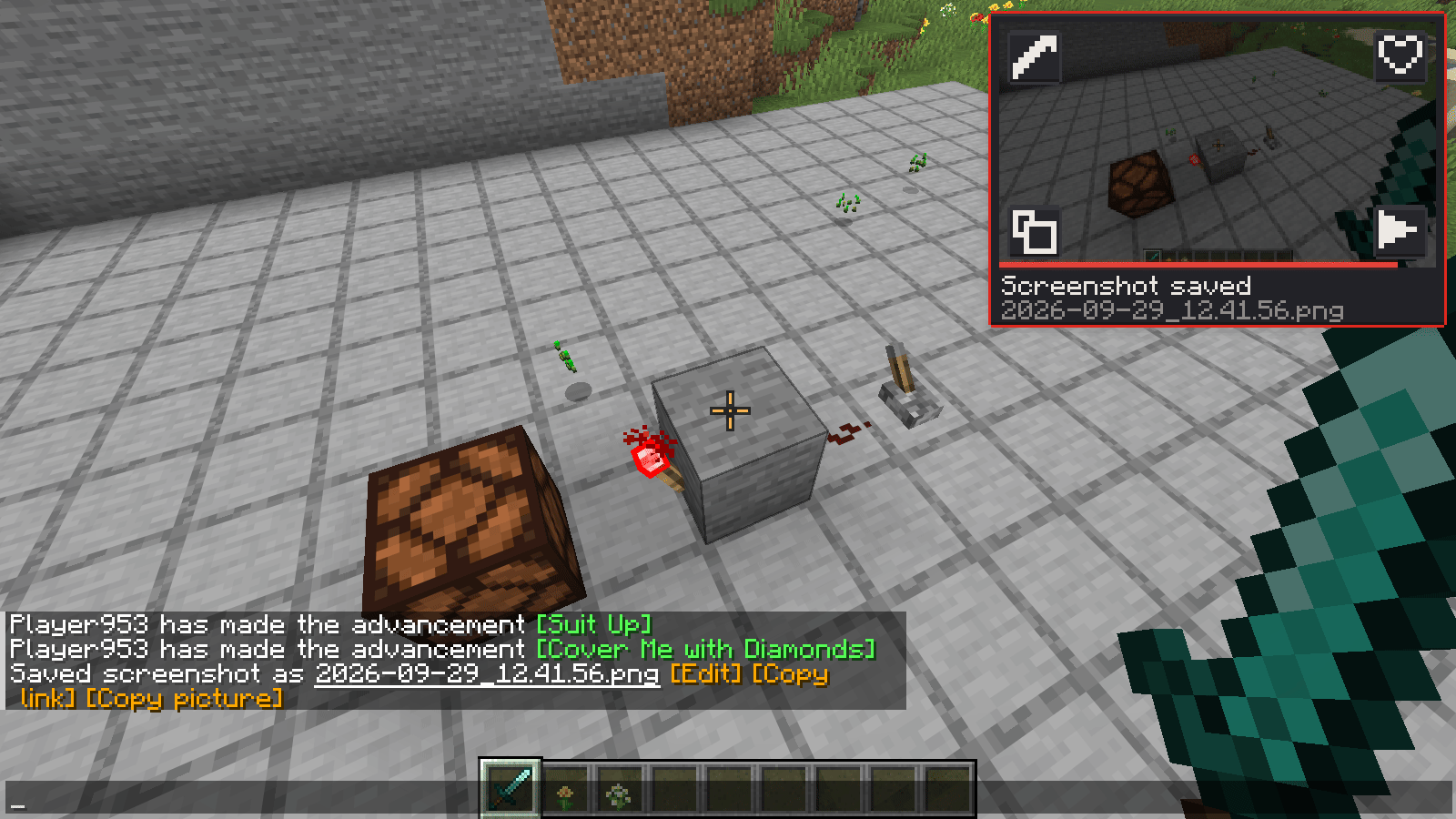
Open the chat or your inventory
The mouse is free there, so you can use the preview. While your mouse is on it, it stays.
Pick an action
Hover the preview and four buttons appear:
- Edit – opens the screenshot editor,
- Add to favourites (the heart),
- Copy picture – straight to the clipboard, paste it anywhere with Ctrl + V,
- Send to friends – pick one or more friends or chats; the picture goes out as a normal chat image.
The chat message "Screenshot saved:" has Edit, Copy link and Copy picture, and hovering it shows the picture. Copy link uploads the screenshot and copies a share link that works for 30 days.
The module Screenshot Tools (category Other) has the settings: Preview after a screenshot, Preview duration (3 – 15 s, default 5), Actions in the chat message and Replace Essential's screenshot preview.
Screenshot editor
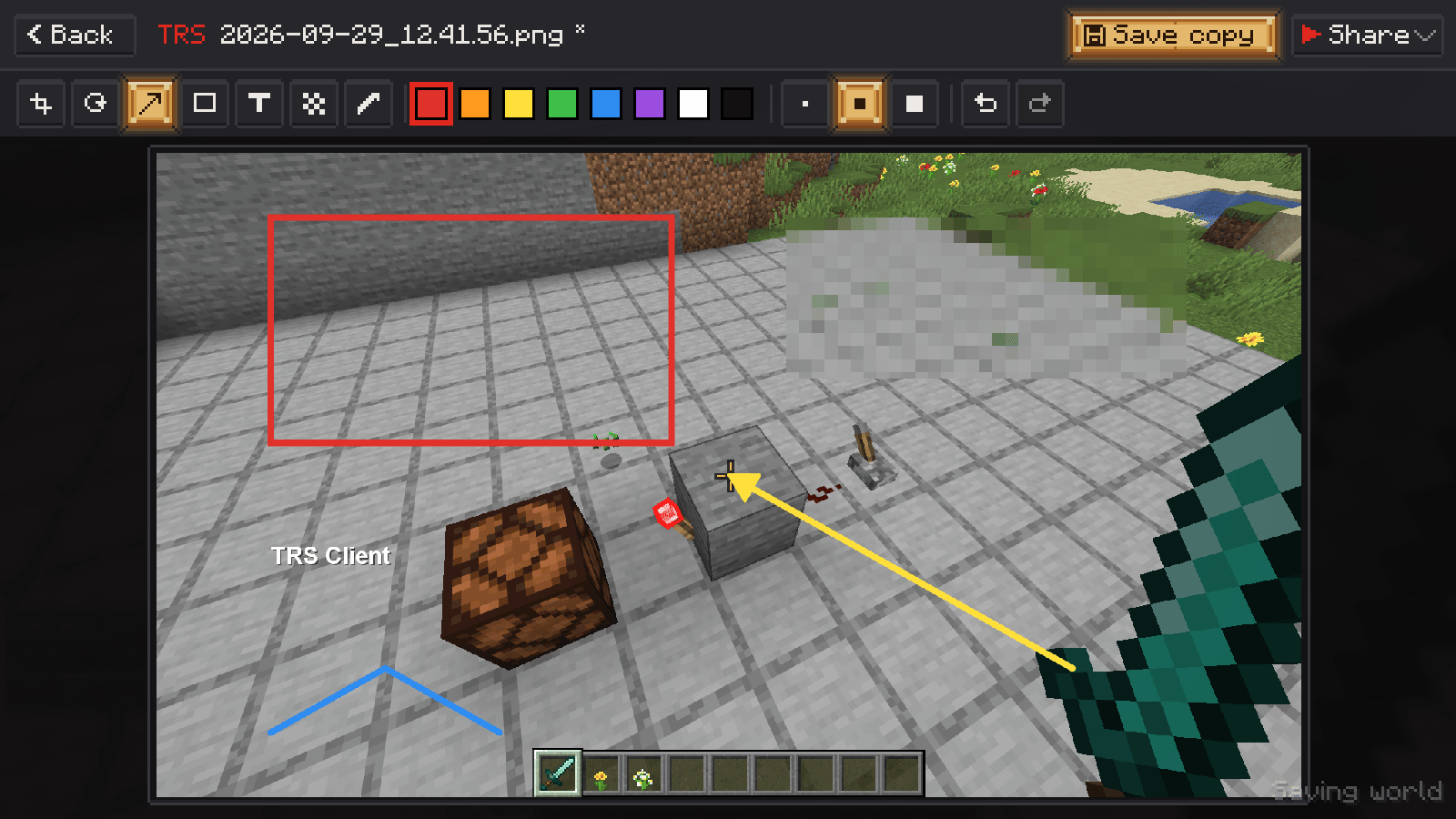
- Crop with handles on the corners and edges, Rotate 90°
- Arrow, Frame, Text and Pen
- Pixelate – hide names or coordinates, great for streamers
- colour and size (thin, medium, thick), Undo Z and Redo Y
Save copy always creates "Copy of …" next to the original – your original screenshot is never changed. Share sends it to friends, copies the picture or copies a link.
Favourites show up in their own tab in Clips & Images.
Clips and recording
Clips are recorded by the TRS Launcher – the game window with system sound, the microphone only if you turned it on in the launcher. Nothing leaves your PC.
Turn clips on
In the launcher under Settings → Clips. Or press F9 in game while clips are off, then press it a second time – the launcher switches clips on and starts recording.
Save a clip
F9 saves the last seconds (the length is set in the launcher).
Record
F10 starts and stops a normal recording. A small HUD element shows a red dot and the time while recording and "Clip saved" afterwards; move it in the HUD editor.
Clips & Images
Open Clips & Images from the TRS menu, the pause menu or the title screen: all your clips and screenshots as tiles. Look at screenshots in full size, start or stop a recording, save a clip, open the folder or delete files. A clip opens a small animated preview with play/pause and a timeline, and Open in launcher plays it in the launcher.
Panorama screenshots
The module Panorama Screenshots (category World) records a 360° panorama:
Take it
Click Take panorama now on the module page, or bind the key Take panorama in the Minecraft controls (unbound by default). The HUD is hidden while recording.
Find it
The pictures are saved in screenshots/panorama. A message offers to open the folder.
Share it
Share on the module page uploads the 360° picture and copies the link.
Save as: 6 cube images + 360° image (default), only 6 cube images (like the title screen panorama, ready for a resource pack) or only the 360° image, which you can view in any panorama viewer.
Version notes
- The screenshot preview, editor, favourites and Copy picture work in every version. On 1.7.10 and 1.13.2 there are no links, no sending and no chat actions.
- Copying pictures on Linux needs
wl-clipboardorxclip. - Panoramas work on 1.8.9 – 1.12.2 and from 1.17 on.
- Clips work in every version when the game was started from the TRS Launcher on Windows.
Emotes, capes, wardrobe and accounts
Emote wheel, TRS capes with cape physics, the in-game wardrobe with skin editor and switching Minecraft accounts without a restart in the TRS Client.
World notes
A notebook for every world and server in the TRS Client – checklists, clickable coordinates, a note pinned to the HUD and sync with your TRS account.