
Updates
TRS Launcher keeps itself up to date. New versions are signed, download in the background while you play and install when you restart.
Update the launcher
- When a new version is out, the launcher downloads it in the background. The tasks panel shows "Downloading update in the background".
- As soon as it's ready, a Restart to update button appears in the title bar.
- Click it. You see a short "Updating – restarting in a moment …" screen, then the new version starts. Running games keep running.
If an update fails, the title bar shows why and offers Retry update or Download installer.
The .deb, .rpm and AUR packages are updated by your package manager. The launcher only tells you: "Update … available" with a link to the release.
- Arch (AUR):
yay -Syuorparu -Syu - Debian/Ubuntu: download the new
.deband install it withsudo apt install ./TRS-Launcher_<version>_amd64.deb - Fedora/openSUSE: install the new
.rpmwithdnforzypper
The TRS Client updates itself
The TRS Client has its own signed update channel and gets fixes without a new launcher version. It updates itself on the next game start. The current TRS Client version is shown at the bottom of the settings.
What's new
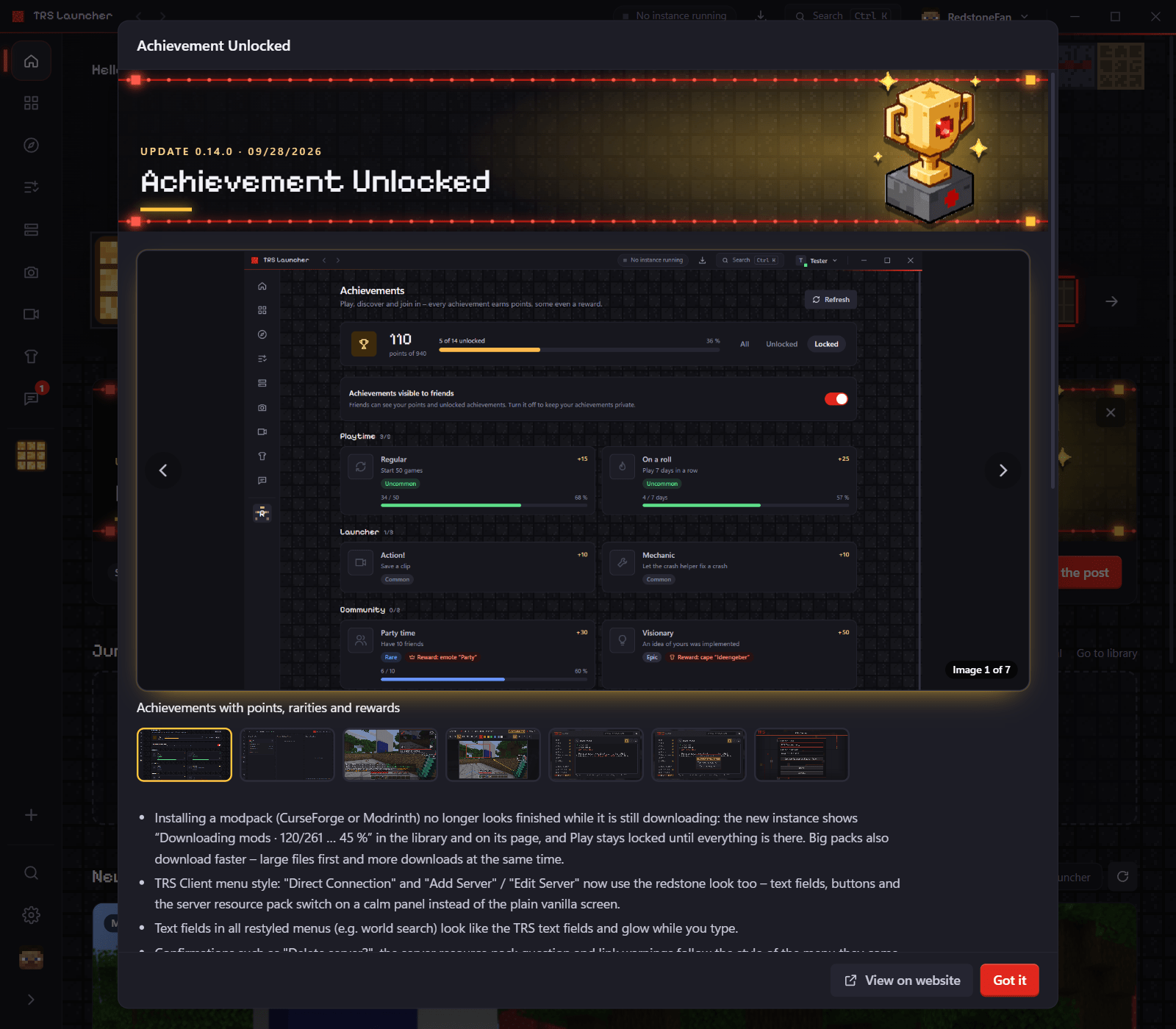
After an update the launcher shows What's new in … once, with the notes of the new version (in English and German).
Every update also has a post of its own: click the update card on the home page, the update in News (filter Launcher) or a version in "What's new". The post shows the update banner, a gallery of screenshots of the new features (click to enlarge, browse with the arrow keys), the release notes and View on website.
Release notes
All versions with their notes are on the TRS website blog and in the GitHub releases.