
Friends & chat
Social in the sidebar brings your friends into the launcher: a friends list with online status, direct messages and groups, pictures, server invites and your friends' open worlds. Everything updates live, and the TRS Client shows the same chats in the game.
Turn on the TRS services
Friends and chat run over the optional TRS services. They are off until you agree.
Open Social
Click Social in the sidebar. As long as the services are off, you see "TRS services are turned off".
Read what's stored
Click Learn more & turn on. The dialog explains what the TRS server stores (for example your Minecraft UUID and name, friends and chat messages).
Agree
Click Use TRS services. The launcher signs in to the TRS server with your Minecraft account – like joining a Minecraft server. The server never gets your password or your Minecraft token.
Friends
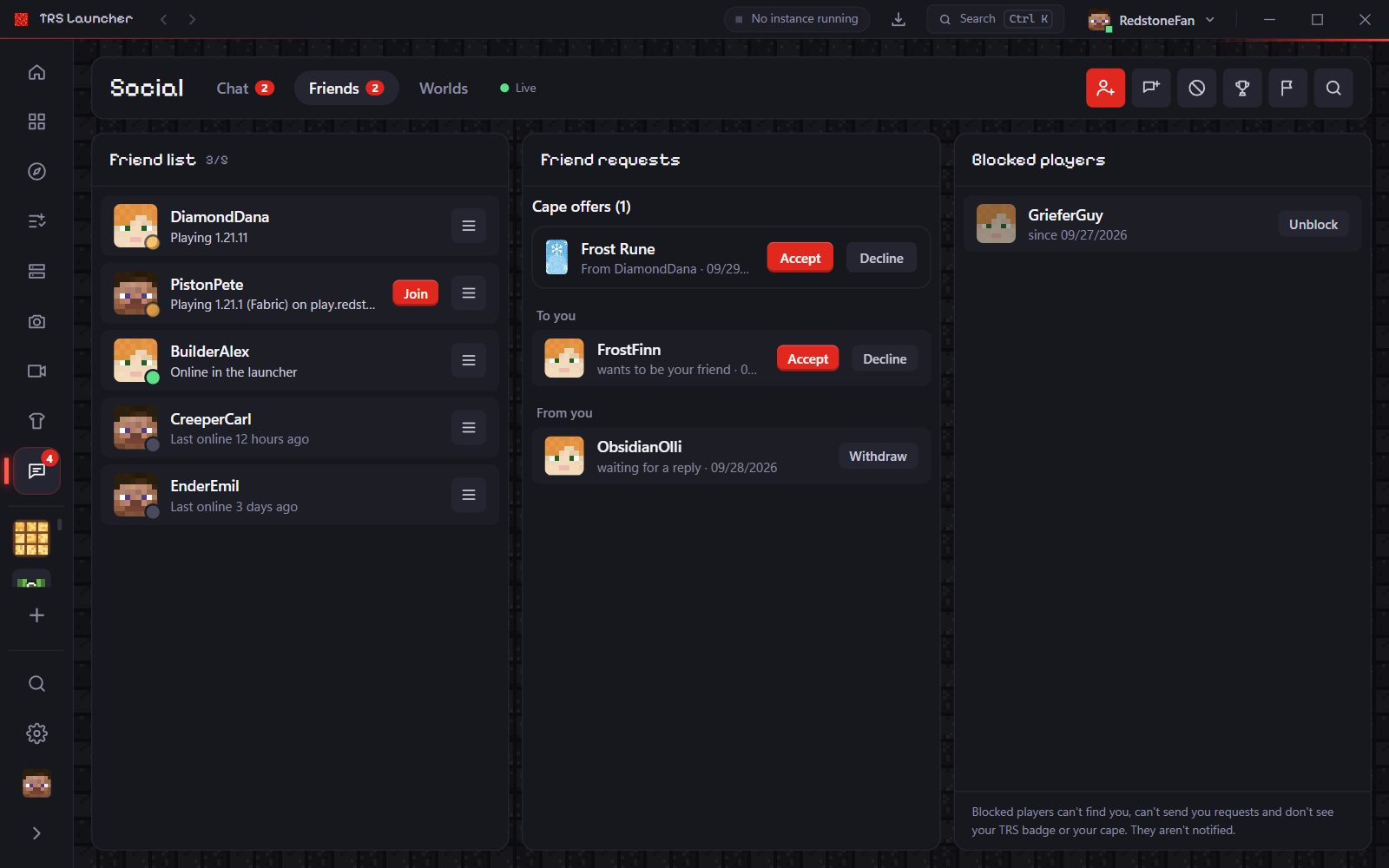
The Friends tab shows your Friend list, Friend requests and Blocked players side by side.
- Add friend: enter the player's Minecraft name and click Send request. Your friend needs to have used the TRS Launcher with TRS services at least once.
- Requests: Accept or Decline requests to you, Withdraw your own. Cape offers from friends show up here too.
- The list shows who is online, what they are playing and when they were last online. Click a friend to see their achievements, or send a message.
- Remove friend and Block are in the conversation menu. Blocked players can't find you, can't send requests and don't see your TRS badge or cape – they aren't told.
Chat
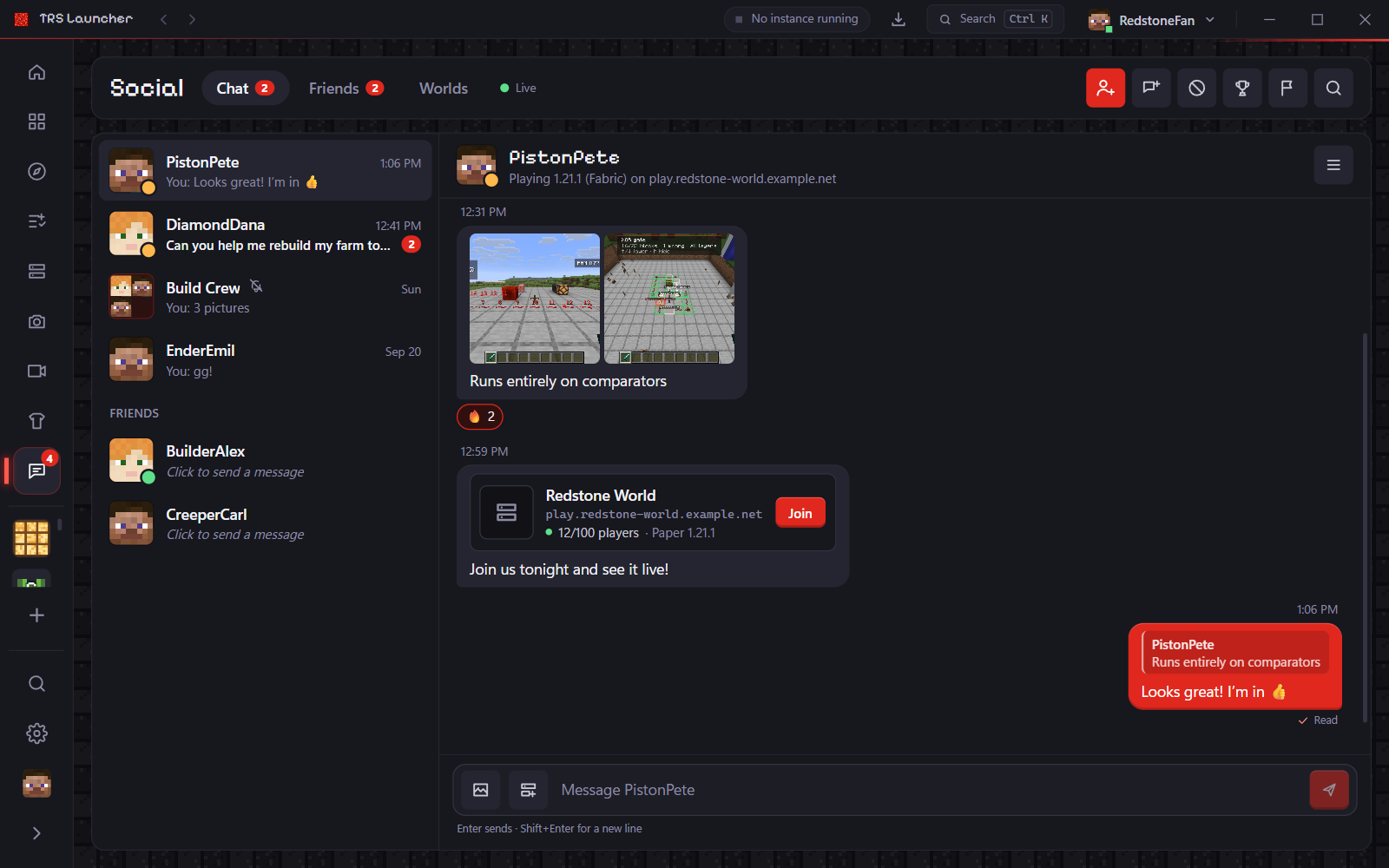
The Chat tab lists your conversations. Click a friend or group and write – Enter sends, Shift + Enter adds a new line.
- Reply, React with an emoji, copy messages, edit or delete your own, and Mark as unread. Right-click a message for all options.
- You see when someone is typing and when your message was Read. Both can be turned off in the privacy settings.
- Mute a conversation for 1 hour, 8 hours, 1 day or until you unmute it.
- Links only open after you confirm them.
Groups
Create group, name it and add friends. As the owner you can rename the group, add or remove members, Make owner of someone else or Delete group. Members can Leave group at any time. New members see messages from the moment they join.
Pictures
Click Pictures in the message box to send up to 10 pictures at once: screenshots of all your instances, Favourites or Uploads from your PC. You can also drag pictures into the window or paste them with Ctrl V.
Server invites
Invite to a server picks one of your servers or an address. Your friends see a card with the server's icon and player count. Join asks which instance to use (matching versions first), starts it and connects right away.
Worlds
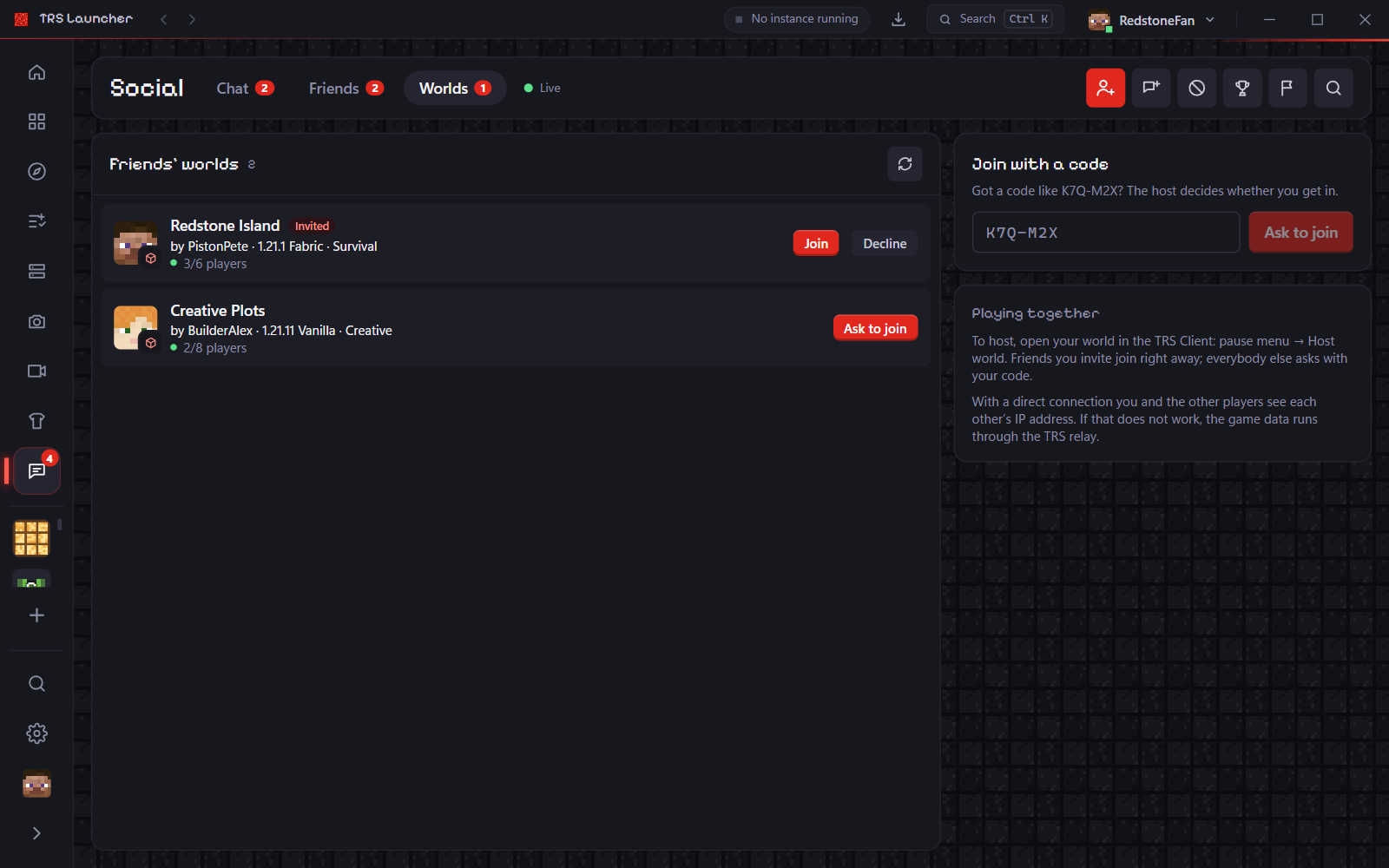
When a friend opens their singleplayer world in the TRS Client (pause menu → Host world), it shows up live in the Worlds tab with version, game mode and player count.
Join or ask
Invited? Click Join. Not invited? Click Ask to join – or Join with a code if you got one like K7Q-M2X. The host decides whether you get in.
Pick the instance
The launcher chooses an instance with the same Minecraft version and loader (you choose if there are several). If none fits, Create and join makes one with the TRS Client.
Play
The game starts and joins the world by itself – no address to type, no port forwarding.
If the world shares mods, the launcher shows them first and lets you Create a new instance, add them to a copy of an existing instance (your original stays untouched) or Join without mods when nothing required is missing. Mods from Modrinth and CurseForge are downloaded from their official source. Mods sent directly by the host come with a warning and are only installed after you tick I trust this host.
Notifications
Small pop-ups tell you about new messages (with Reply right in the notification), server and world invites, friend requests, cape offers and friends coming online. When the launcher is in the background, Windows shows them too. While you play with the TRS Client, the launcher stays quiet – the game shows them instead.
Choose position, duration, sound, Do not disturb and which kinds you want under Settings → Notifications.
Report and stay safe
- Report messages, pictures, players or groups with a reason and an optional note. The team sees the reported content and a few messages around it; the reported player doesn't learn who reported them.
- Settings → Privacy → My reports shows what happened to your reports.
- If the team gives you a sanction, Settings → Privacy → My sanctions shows what it blocks, when it ends and why – and you can appeal each one once.
Who can see your online status and server is set under Settings → Privacy.