Common problems
Most problems have a quick fix. Find your symptom below. If the game itself crashed, the crash helper usually knows more.
Signing in doesn't work
You sign in with the Microsoft account you bought Minecraft with. The password is only entered at Microsoft in your browser – the launcher never sees it. The steps are in Sign in.
Start the sign-in
Open Accounts and press Add account. Your browser opens the Microsoft page. Finish it there – the launcher continues by itself.
Use the code if the browser doesn't come back
If the browser sign-in gets stuck, use Sign in with code: the launcher shows a code, you enter it on the Microsoft page that opens.
Check the message
If it still fails, the message tells you why. See the table below.
| Message | What to do |
|---|---|
| This account doesn't own Minecraft: Java Edition. | Sign in with the account that bought the game. Bedrock alone isn't enough. |
| This account doesn't have a Minecraft profile yet. | Sign in once in the official launcher and choose a player name. |
| This Microsoft account doesn't have an Xbox profile yet. | Sign in once on xbox.com and create a profile. |
| This is a child account and must first be added to a Microsoft family by an adult. | An adult adds the account to a Microsoft family. |
| This account needs age verification on Xbox. | Finish the age verification on Xbox. |
| Xbox Live isn't available in your country. | Xbox Live has to be available in the account's region. |
| The sign-in has expired – please sign in to the account again. | Sign in to the account again under Accounts. |
| Saved sign-in data is corrupted / couldn't be decrypted – please sign in again. | Remove the account and add it again. |
| Signing in timed out / The sign-in code has expired. | Start again and finish within a few minutes. |
| A sign-in is already in progress. | Finish or close the open sign-in first. |
Downloads or installs fail
- "Download failed" or "Network error": check your internet connection and try again. Tasks that failed can be started again from the tasks panel with Retry.
- Slow or unstable connection: lower Settings → Network → Parallel downloads.
- "The author of … doesn't allow downloads through other apps": some CurseForge projects can only be downloaded on the CurseForge website. Download the file there and add it to the instance, or import the modpack file.
- "There's no compatible version for Minecraft … with this mod loader": the mod doesn't exist for this version or loader yet. Pick another version or loader.
- "This instance is vanilla – mods need an instance with Fabric, Quilt, Forge or NeoForge": create an instance with a mod loader, or change the loader of this one.
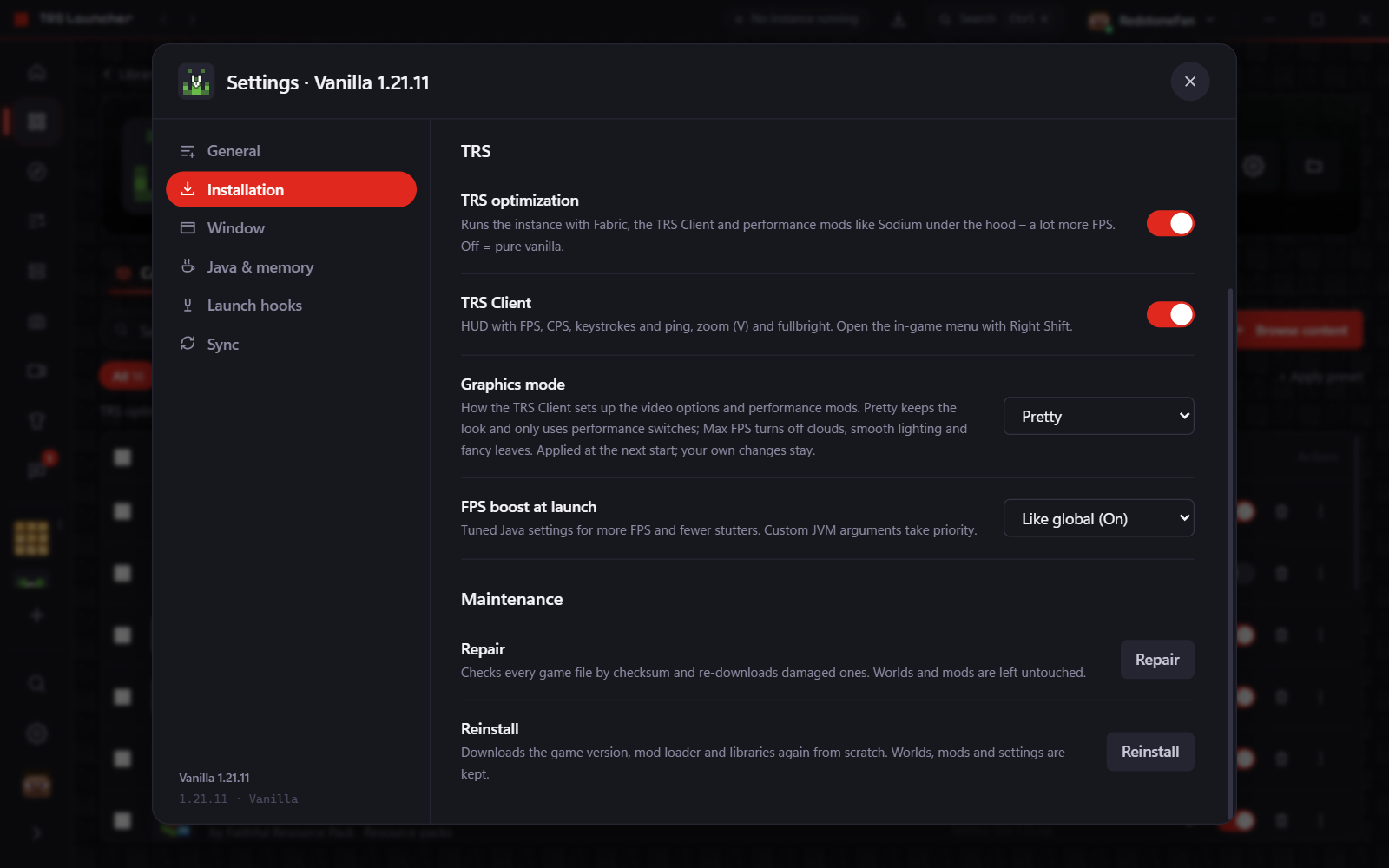
- Broken files after an interrupted download: open the instance settings → Installation → Repair. It checks every game file and downloads broken ones again; worlds and mods stay untouched. Settings → Storage → Check & repair does the same for the game files all instances share.
A modpack takes a long time
A modpack can have hundreds of files. The launcher downloads the pack, then every mod, then extracts the remaining files – you can follow each stage in the tasks panel.
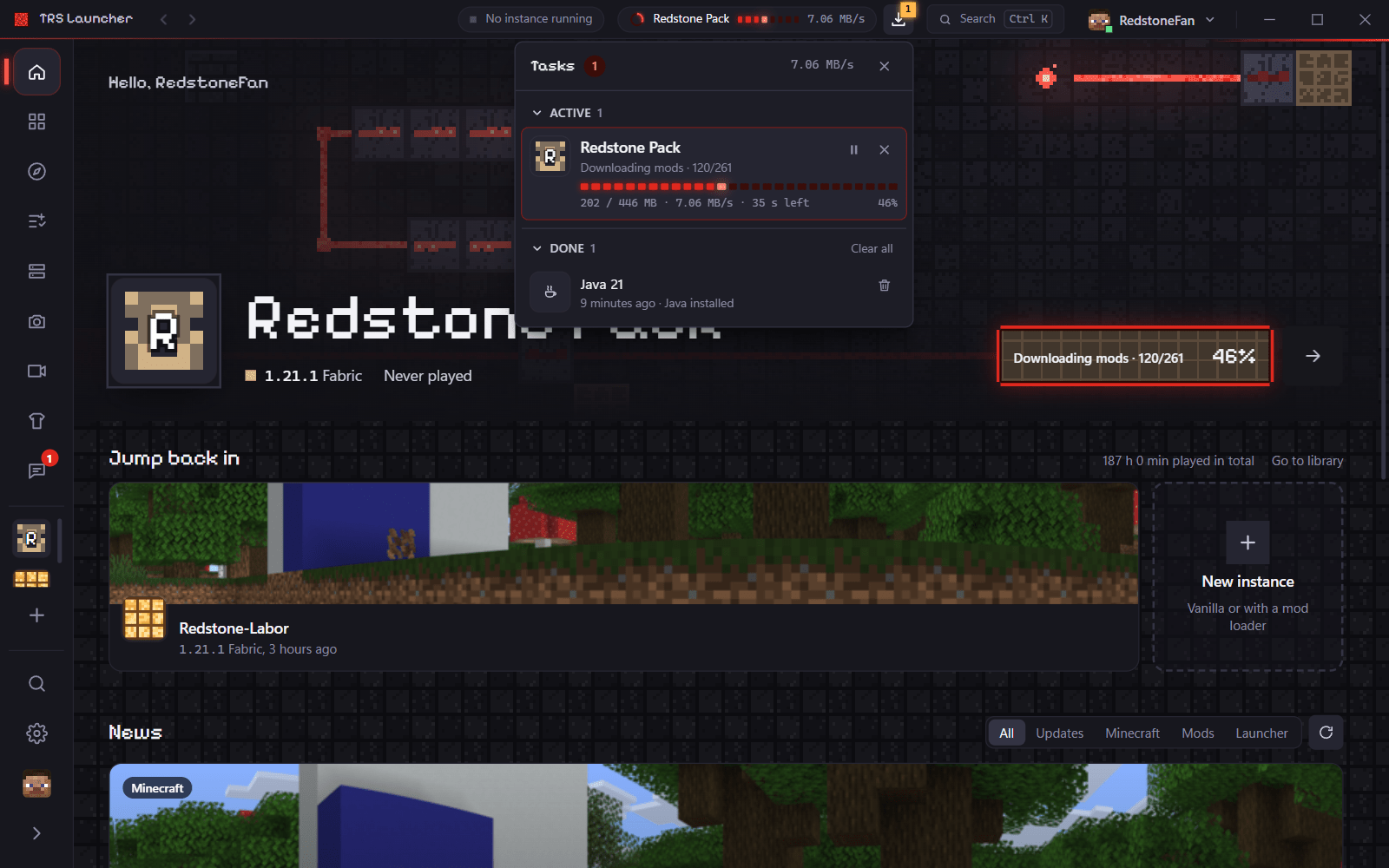
- Installs keep running in the background while you use the launcher. You can pause, resume or cancel them in the tasks panel.
- The first launch of a new Minecraft version also downloads Java, the game and its resources. Forge and NeoForge run their installer too. The next launches are much faster.
- On a slow connection, fewer parallel downloads can be more stable.
The game doesn't start
Read the message
The launcher tells you what went wrong, for example "Java couldn't be started" or "The configured Java path doesn't exist". See the list of messages below.
Look at the log
Open the instance → Logs. The live log shows everything the game wrote. Under Launcher output you find the game output the launcher recorded. More in Logs.
Check your own settings
A custom Java path, custom JVM arguments or launch hooks (commands before launch) can stop the game. Switch them off in the instance settings and try again. A failing Before launch command stops the start on purpose.
Black or blank window
The launcher window stays empty
- Windows: the launcher needs Microsoft WebView2. It is part of Windows 10 and 11; the installer downloads it if it is missing.
- Linux: see Linux → Blank or white window.
The game window is black or the game crashes at the start
- Update your graphics driver (AMD Software: Adrenalin Edition, NVIDIA App, or the driver from Intel or your PC maker).
- On a laptop with two graphics chips, turn on Settings → Default settings → High-performance graphics card.
- Try once without shaders. Very old graphics cards only run older Minecraft versions.
Low FPS
Keep the TRS optimization on
New vanilla instances launch with Fabric, the TRS Client and performance mods like Sodium. You can check this in the instance settings → Installation → TRS optimization.
Check the frame limit
New instances start with an unlimited frame rate and VSync off. Older instances keep their own video settings – in the game, set Max Framerate to "Unlimited" and turn VSync off.
Run the performance check
In the game, open the TRS menu with Right Shift, go to the FPS category and open FPS Boost. The performance check finds FPS killers in your video settings and fixes them with one click; FPS Boost also sets everything to Low, Medium or High. More in Performance.
Pick the graphics mode
Instance settings → Installation → Graphics mode: Pretty keeps the look, Max FPS turns off clouds, smooth lighting and fancy leaves.
More that helps:
- Settings → Default settings → FPS boost at launch uses tuned Java settings.
- High-performance graphics card on laptops.
- Don't give the game too much RAM: more than half of your computer's memory rarely makes sense. See Java & memory.
- For modded instances, the Presets page has FPS packs (Max FPS, Light shaders, Pretty shaders).
What the error messages mean
The launcher shows a readable message instead of a technical error; the details go to the launcher log. Behind each message is a fixed code. The tables below list the most common ones – mention the code or the message when you ask for help.
| Code | Message | Meaning |
|---|---|---|
network | Network error – please check your internet connection. | A server couldn't be reached. |
download | Download failed – please check your internet connection and try again. | A file couldn't be downloaded or its checksum was wrong. |
io | A file could not be read or written. | Disk full, file locked by another program, or no permission. |
data | Data could not be processed. | A server or a file sent something unexpected. |
internal | An internal error occurred. | A bug – please report it with the launcher log. |
unknownVersion | Minecraft version "…" is unknown | The version doesn't exist in Mojang's version list. |
instanceNotFound | Instance "…" was not found | The instance was deleted or moved. |
| Code | Message | Meaning |
|---|---|---|
launcher.alreadyRunning | This instance is already running. | Close the running game first. |
launcher.signInFirst | Please sign in with your Microsoft account under "Accounts" first. | Release builds need an account that owns the game. |
prepare.javaPathMissing | The configured Java path doesn't exist. | Fix or remove the custom Java path. |
prepare.loaderFileMissing | A file generated by the mod loader is missing. | Launch the instance again. |
prepare.noClientDownload | This version has no client download. | This version can't be played as a client. |
process.exitedImmediately | The game closed right away. | Look at the log under Launcher output. |
process.javaStartFailed | Java couldn't be started. | The Java program is broken or not a Java. |
java.noRuntimeForPlatform | There's no matching Java runtime for this platform. | Set your own Java in the settings (e.g. on ARM). |
hooks.preLaunchExitCode | The pre-launch command failed (exit code …). | Your "Before launch" command returned an error. |
| Code | Message | Meaning |
|---|---|---|
loaders.notAvailable | This mod loader isn't available for Minecraft … (yet). | Pick another loader or version. |
forge.versionUnavailable | Forge … isn't available for Minecraft …. | Pick another Forge version. |
forge.legacyUnsupported | Forge isn't supported for this Minecraft version yet (1.7 and later only). | Use Minecraft 1.7 or newer. |
forge.installerDownloadFailed | The mod loader installer couldn't be downloaded. | Check the connection and the loader version. |
forge.installFailed | Installing the mod loader failed. | Details are in the launcher log. |
forge.installIncomplete / forge.installerCorrupt | The installation is incomplete / the installer is corrupted. | Try again. |
| Code | Message | Meaning |
|---|---|---|
modrinth.vanillaNoMods | This instance is vanilla – mods need an instance with Fabric, Quilt, Forge or NeoForge. | Choose a mod loader first. |
modrinth.noCompatibleVersion | There's no compatible version for Minecraft … with this mod loader. | The mod doesn't support this version yet. |
curseforge.downloadBlocked / curseforge.packBlocked | The author of "…" doesn't allow downloads through other apps. | Download it on CurseForge and import it. |
curseforge.packFileMissing | A file of the modpack no longer exists on CurseForge. | The pack author has to fix the pack. |
curseforge.rateLimited | CurseForge is slowing down requests right now. | Wait the shown time and try again. |
modpack.corrupt | The modpack is damaged. | Download the pack file again. |
modpack.notModrinthPack / modpack.unsupportedFormat | This isn't a valid Modrinth modpack / format isn't supported. | Use a .mrpack or a CurseForge pack zip. |
modpack.disallowedSource | The modpack points to a download source that isn't allowed. | The pack wants to download from an unsafe address; the launcher refuses. |
upload.emptyOrTooLarge | The file is empty or larger than 200 MB. | Only files up to 200 MB can be added. |
| Code | Message | Meaning |
|---|---|---|
trs.disabled | TRS services are turned off (Settings → Privacy). | Turn them on if you want capes, friends or chat. |
trs.offline | The TRS server can't be reached right now. | Try again later. |
trs.noAccount | Please sign in with your Minecraft account under "Accounts" first. | TRS services need a Minecraft account. |
trs.rateLimited | Too many requests – please try again in … s. | Wait the shown time. |
trs.mojangRateLimited | Mojang is limiting sign-ins right now. | Try again in a minute. |
trs.sessionExpired | Your TRS session has expired. | Try again – the launcher signs in again. |
trs.banned | Your account is banned from TRS services. | Only TRS services are affected, not Minecraft. |
Still stuck? Report a bug or ask on Discord.