
Settings
Open the settings with Settings at the bottom of the left sidebar. Changes are saved by themselves. You can also jump to a section with Ctrl K.
Most values here are defaults for all instances – every instance can override them in its own settings (see Instances).
Interface
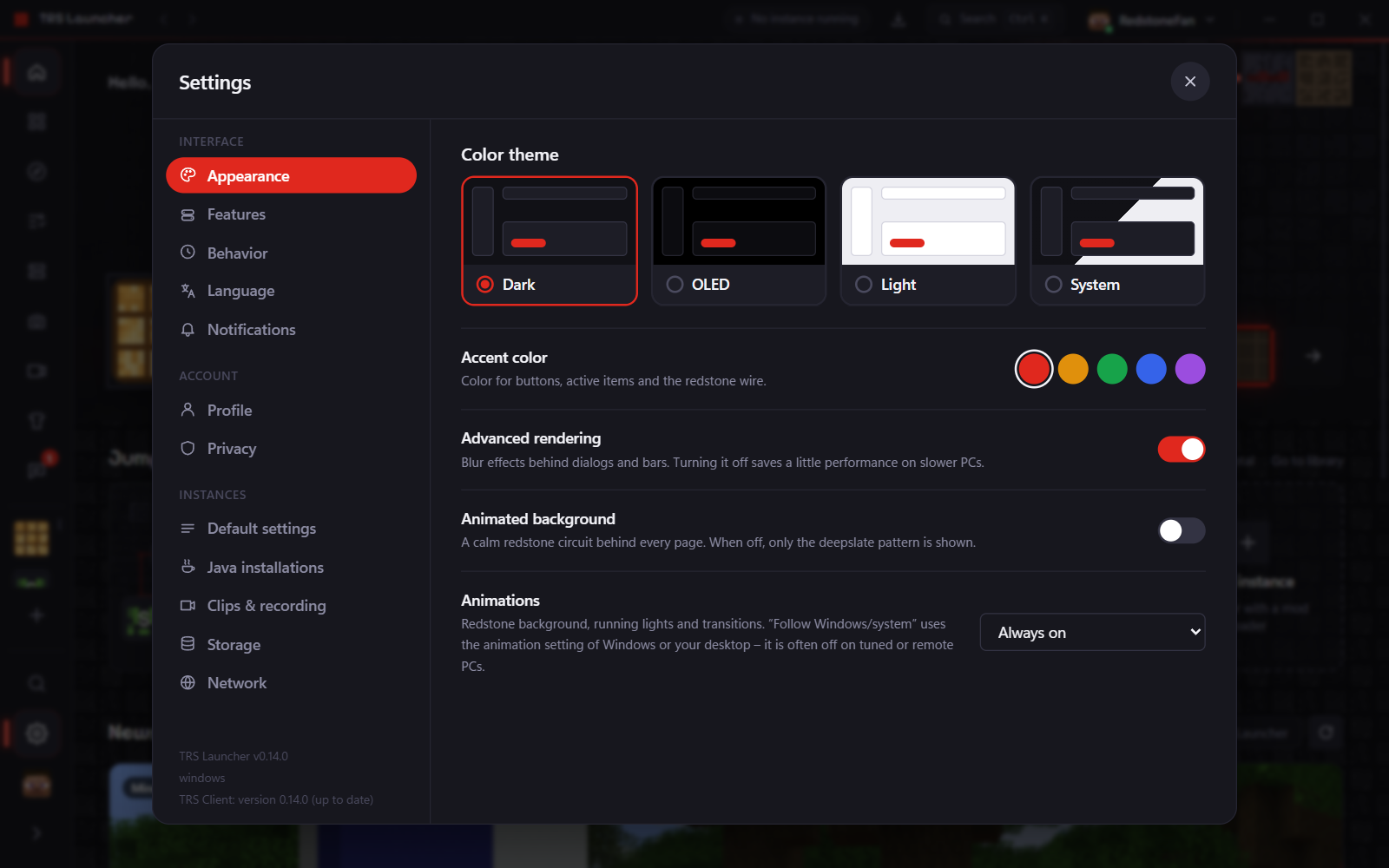
Appearance
- Color theme: Dark, OLED, Light or System.
- Accent color: Redstone, Lamp, Emerald, Lapis or Amethyst – for buttons, active items and the redstone wire.
- Animated background: the calm redstone circuit behind every page.
- Animations: Always on, Follow Windows/system or Reduced.
- Advanced rendering: blur behind dialogs and bars. Turning it off saves a little performance on slower PCs.
Features – show or hide the History, Screenshots and Worlds tabs of instances, the quick instances and the account tile in the sidebar.
Behavior
- Minimize launcher when the game starts – the game keeps running even if you close the launcher.
- Compact library, Show play time, Show snapshots in the version picker.
- Run setup again starts the first-start setup once more.
Language – English, German and Spanish, plus French, Polish, Portuguese (Brazil), Turkish and Dutch as beta (machine-translated; missing texts appear in English). The launcher switches right away.
Notifications – pop-ups for messages, invites, friend requests, cape offers, friends coming online, issues you follow and unlocked achievements: position, duration, sound, Do not disturb, Quiet while playing in fullscreen, Windows notifications and quick reply.
Account
Profile – your Minecraft accounts: switch the active one or Manage accounts.
Privacy
- Allow sharing logs – without it, "Share log" doesn't upload anything.
- Show Discord status – "Playing TRS Launcher" in your Discord profile, while you play also Minecraft version, mod loader and play time. Never server addresses, instance or player names.
- Telemetry – TRS Launcher doesn't collect any usage or crash data. There's nothing to turn on.
TRS services (capes, friends, chat, online status, achievements):
- Use TRS services – off means the launcher sends nothing to the TRS server. The TRS Client won't use the services in game either.
- Sync with TRS account – keeps your own skins, presets, theme, accent colour and language the same on every PC. Java and memory settings stay on each PC.
- Per account: Show TRS badge, Cape visible to others, Online status (visible to friends or nobody), Share server, Read receipts, Typing indicator and Achievements visible to friends.
- My reports, My sanctions and My applications, plus Sign in on the website (see Sign in).
- Delete all TRS data … removes your TRS account with capes, uploads, codes, friends, chats and synced data from the server right away. The skins and presets on your PC stay.
Instances
Default settings
- Memory – the maximum RAM the game may use. New installations start with a value that fits your PC; the game never gets more than your PC's memory minus 2 GB.
- Minimum memory, JVM arguments (or Optimized arguments) and Environment variables.
- Fullscreen and Window size.
- High-performance graphics card – important on laptops. On Windows it only applies to the launcher's own Java; on Linux it uses PRIME offload.
- FPS boost at launch – tuned Java settings for your Java version and memory. Your own JVM arguments win where they overlap.
- Higher process priority – starts the game with "Above normal" priority.
- TRS Client for modpacks – Always ask, Always with TRS Client or Always without TRS Client.
- Launch hooks – commands Before launch, a Wrapper (for example
gamemoderunon Linux) and After exit. - Sync – share game options, the server list, resource packs, command history or saved hotbars between all instances. Overwritten files are backed up first.
Java installations
Leave the fields empty and the launcher installs the right Java from Mojang automatically:
| Slot | Minecraft versions |
|---|---|
| Java 8 | up to 1.16 |
| Java 17 | 1.17 to 1.20.4 |
| Java 21 | 1.20.5 to 1.21.x |
| Java 25 | 26.x |
Install recommended downloads a runtime right away. Set your own path only if you need a specific Java.
Clips & recording
Only on Windows – see Clips & screenshots.
Storage
- Shows how much space instances, shared game files and unused versions take.
- Check & repair checks the shared game files by checksum; damaged files are downloaded again on the next launch.
- Delete unused removes game versions no instance needs anymore. Instances, worlds and mods stay untouched.
- App folder opens the launcher's data folder.
- Stored sign-ins (Linux) shows whether your sign-in key is in the system keyring.
Network
- Parallel downloads – how many files are downloaded at the same time. Use fewer on a slow connection.
- Allow Java versions automatically and Firewall access (Windows) – so Windows doesn't ask for every Java version whether Minecraft may use the network (for example for LAN worlds). One admin prompt allows all of them.
Skins & capes
Manage Minecraft skins in TRS Launcher with a 3D preview, wear Mojang and TRS capes, upload your own cape, redeem codes and share capes with friends.
Updates
How TRS Launcher and the TRS Client update themselves – background downloads, restart from the title bar, update news with screenshots.