
Logs
The log is the first place to look when something goes wrong. The launcher has a log view with filters, so you don't need to open files by hand.
The log view
Open an instance and switch to the Logs tab. While a game runs, you can also jump there from the title bar with Open logs.
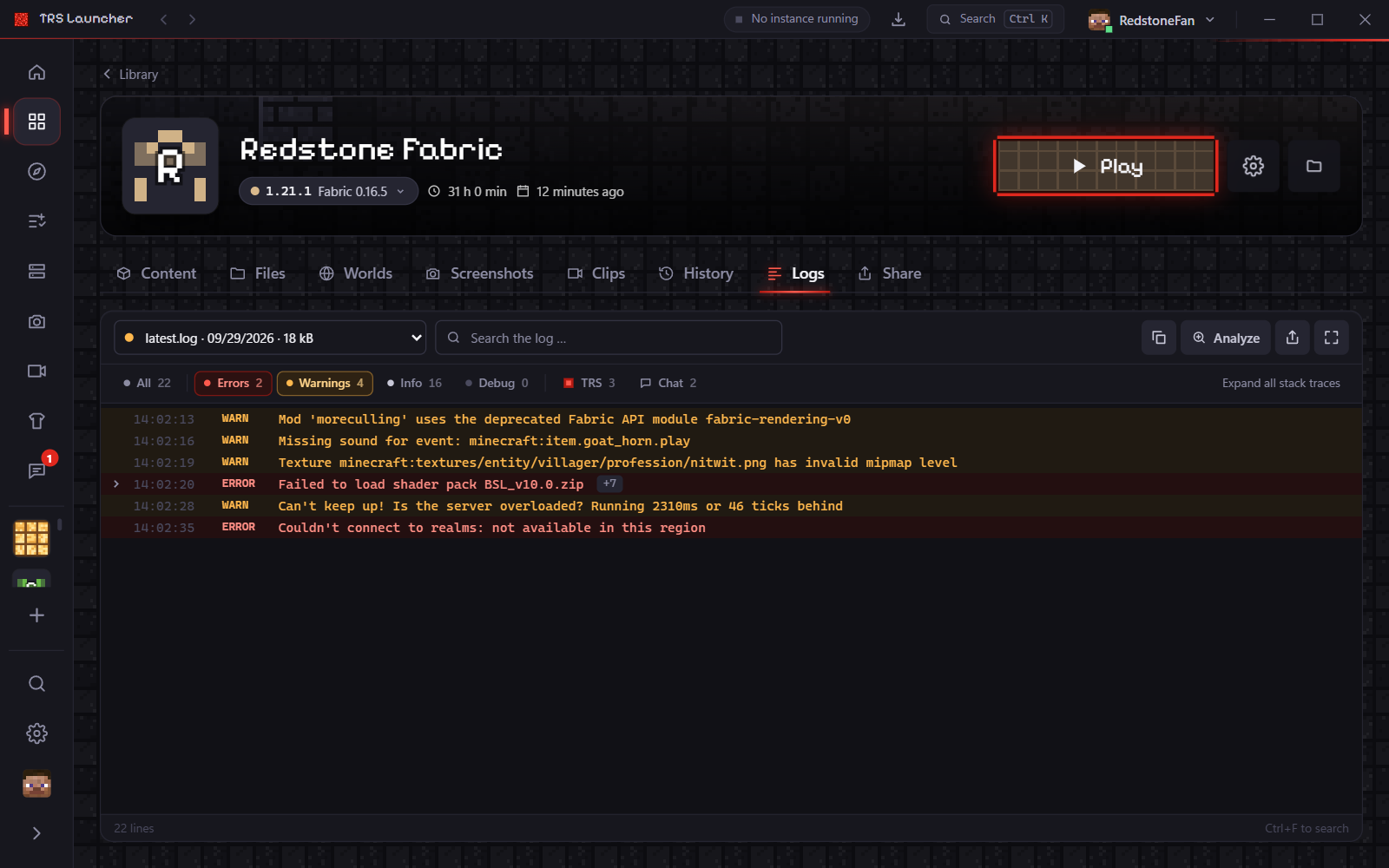
At the top left you pick the log source:
- Live log – what the running game writes, live.
- Latest log –
latest.logof the last session. - Older logs – earlier sessions (
.logand.log.gz). - Crash reports – the reports Minecraft writes when it crashes.
- Launcher output – the game output the launcher recorded.
Filter and search
- Levels: Errors, Warnings, Info and Debug can be combined. TRS shows only lines of the TRS Client, Chat only chat messages, All everything again.
- Search: Ctrl + F jumps into the search field.
- Stack traces are folded to one line. Click Show stack trace to open one, or open and close all at once.
- Follow live: the view follows new lines. If you scroll up, it stops and shows how many new lines came in; Jump to bottom brings you back.
- Copy visible lines copies exactly what the filters show.
- Full screen gives the log the whole window.
Analyze a log
For an older log or a crash report, press Analyze: the crash helper checks it on your PC and explains the cause.
Where logs are stored
Each instance has its own game folder inside the launcher data.
| What | Path |
|---|---|
| Launcher data | %APPDATA%\TRS-Launcher |
| Game logs of an instance | %APPDATA%\TRS-Launcher\instances\<instance>\minecraft\logs |
| Crash reports of an instance | %APPDATA%\TRS-Launcher\instances\<instance>\minecraft\crash-reports |
| Launcher output of an instance | %APPDATA%\TRS-Launcher\instances\<instance>\launcher-logs |
| Log of the launcher itself | %LOCALAPPDATA%\dev.theredstonee.trslauncher\logs |
| What | Path |
|---|---|
| Launcher data | ~/.local/share/TRS-Launcher |
| Game logs of an instance | ~/.local/share/TRS-Launcher/instances/<instance>/minecraft/logs |
| Crash reports of an instance | ~/.local/share/TRS-Launcher/instances/<instance>/minecraft/crash-reports |
| Launcher output of an instance | ~/.local/share/TRS-Launcher/instances/<instance>/launcher-logs |
| Log of the launcher itself | ~/.local/share/dev.theredstonee.trslauncher/logs |
With Flatpak, the launcher data is in ~/.var/app/dev.theredstonee.trslauncher/data/TRS-Launcher.
Share a log
To get help, send a link instead of a file.
Press "Share log"
In the log view, press the share button. The instance's Share tab has Share log … as well.
Confirm the upload
The log is uploaded to mclo.gs. Before that, the launcher removes login tokens and your user name from file paths.
Send the link
The link is copied to your clipboard, and a QR code lets you open it on your phone. Send it to whoever helps you, for example on Discord or in a bug report.
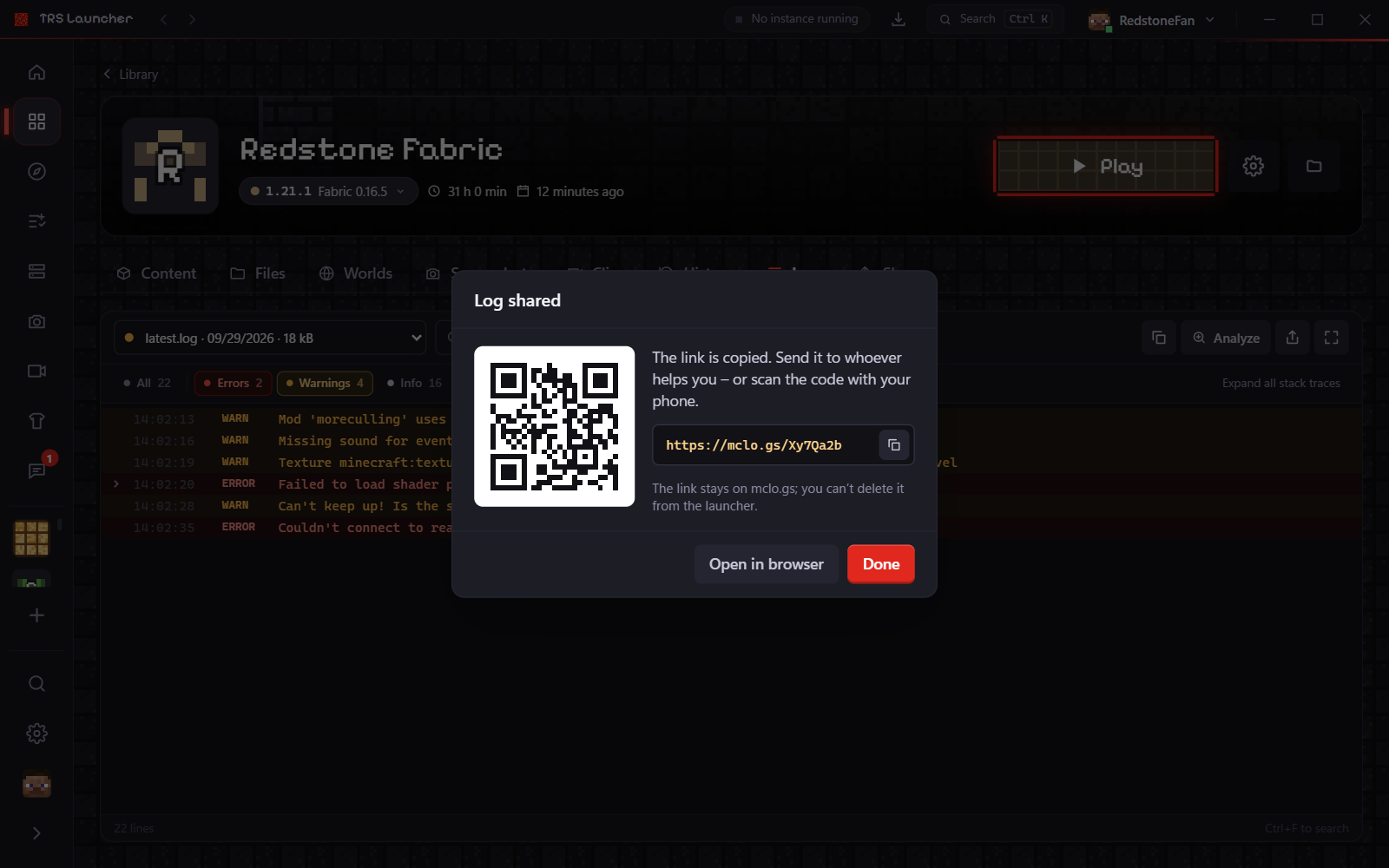
Sharing can be switched off under Settings → Privacy → Allow sharing logs. Then nothing is uploaded.